From Gaming to Viggle AI: A Conversation with a Gaming UI Engineer
Viggle
From Gaming to Viggle AI: A Conversation with a Gaming UI Engineer#
Follow Jim on X or email him at [email protected]!
Viggle: Tell us about your background!
Jim: I started in gaming UI after being trained in computer science. Growing up in China, I was always interested in the arts, but pursuing an art career wasn't considered practical. So, I chose a "real" major in computer science, but I never let go of my passion for art.
I studied at the University of Utah, majoring in Entertainment Arts and Engineering, a program that blends game design, engineering, and production. After graduating, I moved to Los Angeles and Silicon Valley to work as a lead UI engineer in mobile gaming.
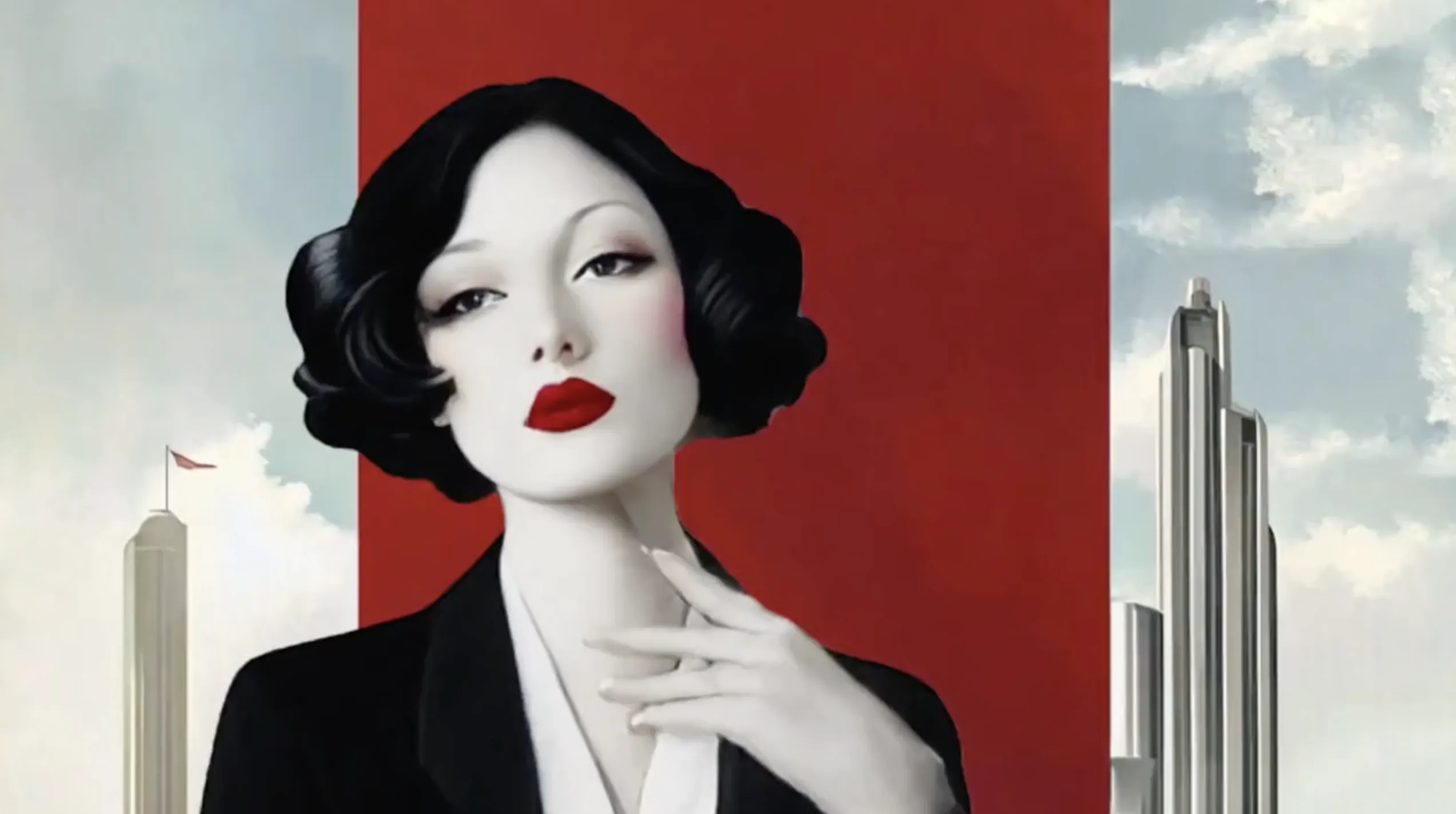
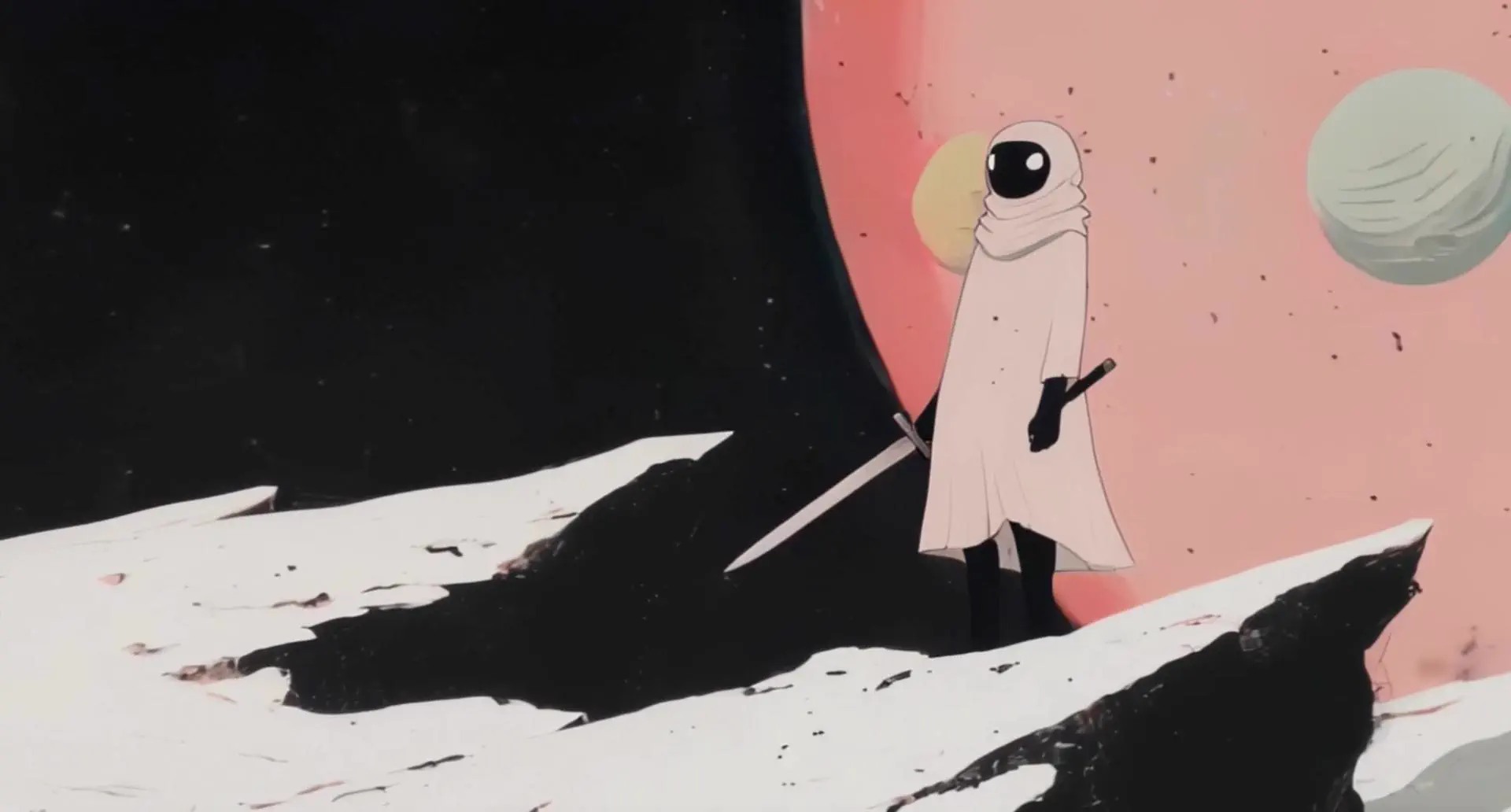
My journey into AI began in February 2023 when Stable Diffusion became open source. With so many tutorials available online and MidJourney advancing to version 3, I noticed AI was finally good enough for art creation. I dove into these tools and started creating concept art using Stable Diffusion and MidJourney.
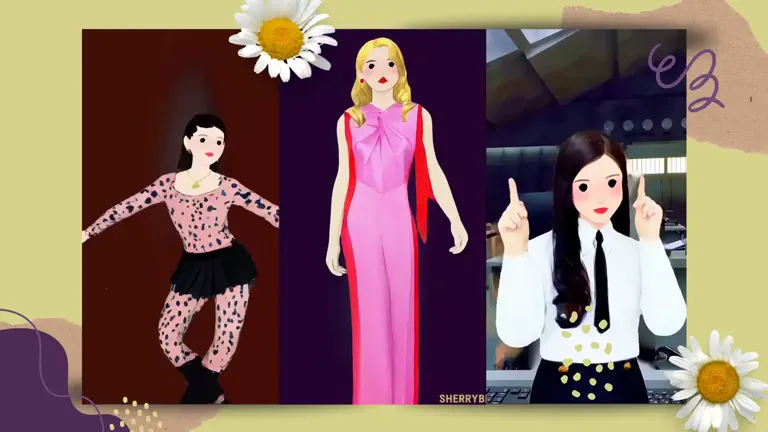
When generative video AI began to explode in 2024, a friend recommended Viggle to me in March or April, just as version 1 launched. By May and June, I was creating more demos with it. I took a brief break while wrapping up a film project but returned to Viggle as I saw its potential grow.
Viggle is such a versatile tool. It's incredibly easy to learn for beginners and powerful enough for professionals who need precision.
Viggle: How do you incorporate Viggle into your workflow?
Jim: Let me share two specific workflows:
Zombie Chase Scene Workflow:
- Inspiration: This idea was inspired by Black Mirror's zombie episode. I wanted the shot to have a zoned-out, apocalyptic feel.
- Background Creation: I used MidJourney to create the post-apocalyptic setting.
- Motion Video: I sourced a 45-degree angle motion from a gaming animation library and generated the motion using Blender. Blender is essential for creators who need precise control over angles and movements, which is critical for achieving a professional look.
- Camera Angle: I used early-day game design techniques to avoid perspective issues and fixed the camera at a consistent angle as the characters moved.
- Swapping Characters: I used CapCut to combine and layer all the elements seamlessly.
Source: Jim's X.
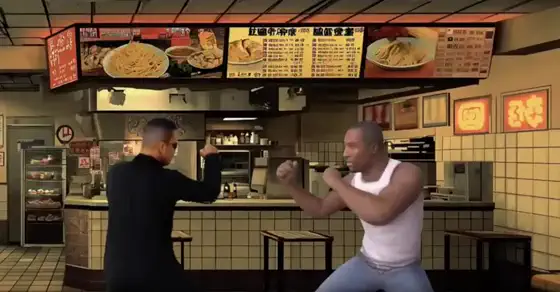
Jackie Chan Action Scene Workflow:
- Background: I wanted to recreate realistic fight scenes and saw Viggle as the perfect tool for action tracking.
- Motion: I found a classic Jackie Chan fight scene and used it as the motion source.
- Separate Tracking: I cut and tracked specific fight segments to match my vision.
- Layering: I combined all the tracked elements to produce a cohesive and dynamic action sequence.
Viggle: What excites you about AI, and what are your goals for the future?
Jim: I'm passionate about creating content that feels both familiar and new while meeting professional benchmarks. Right now, audiences are forgiving of AI-generated content, which makes it hard to get genuine feedback. For AI tools like Viggle to succeed, creators need to push the boundaries of quality and produce work that stands alongside traditional media.
My ultimate goal is to create content good enough for everyday consumption—content that doesn't just scream "AI-made" but stands on its own merit. I believe high-quality content inspires better ideas and raises the bar for everyone. AI is an incredible tool, and I want to use it to push creativity to new heights while ensuring the work resonates deeply with audiences.
Jim is paving the way for more polished and professional AI content through innovative workflows and a passion for raising creative standards. Whether it's a zombie chase scene or a Jackie Chan-inspired fight, the possibilities with Viggle continue to inspire.
Join our creator program to enjoy Pro features and the latest product updates!
Reach out to us at [email protected].