How to Turn a Photo Into a Dancing Video With AI (Step-by-Step Guide)
Viggle
How to Turn a Photo Into a Dancing Video With AI (Step-by-Step Guide)#
By Aastha Kochar
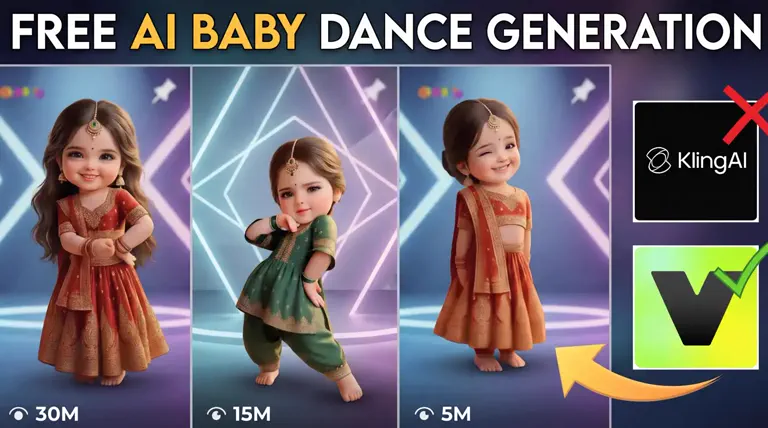
Lately, TikTok, YouTube Shorts, and Instagram Reels have been filled with dancing versions of just about anything. One moment it's a serious passport photo, the next it's a movie villain breaking into Bollywood steps. These quick, funny AI dance clips have become the internet's newest obsession.
But they're not only for laughs. Creators are using them to boost engagement, and even brands are trying animated mascots to join the trend. With motion models and tools like Viggle AI, you don't need editing skills or complex software to create these yourself.
In this blog, you'll learn exactly how to do that with a simple step-by-step guide, along with smart tips to avoid those awkward glitches.
Ready to turn a single picture into your next viral post?
Let's get into it!
What is AI Photo-to-Dancing Video Generation?#
AI photo-to-dance video generation is a technology that takes a single image and brings it to life with realistic dance movements. Instead of manually animating each frame, AI looks at the photo, understands the person's shape and identity, and then applies motion on top of it.
Here's what it looks like in action…
This works due to motion transfer, which:
- Analyzes a reference dance clip (a real person dancing)
- Then, it copies the movement into the photo while maintaining identity
- Finally, generates multiple new frames to form a smooth dancing video
However, the quality of the photo matters here too because all the motion is built from just one image. The AI needs the photo to give it enough clues about the pose, character clarity, and frame generation. Hence, it is necessary to take note of these aspects.
What Type of Photos Work Best for AI Dance Videos?#
If you want your AI dance video to look clean and realistic, the photo you choose matters more than you think. So, here are 4 major types of photos to consider:
Front Facing#
Front-facing photos are ideal because they give AI a clear view of the facial structure. When the person is directly looking at the camera, the model knows exactly how the head and expressions should move during the dance.
The reel below is a good visual reference for this type of image…
Because the face is captured front-on, the motion transfer looks confident and stable. Every expression lands correctly, instead of sliding or shifting awkwardly across frames.
High Resolution Faces#
High-resolution photos give AI enough detail to animate expressions while keeping the person recognizable. Fine elements like skin texture, eye shape, and lip curves stay intact even when movement speeds up. Here's a dancing video that shows exactly why clarity matters.
It works because the face is sharp and there is no blur or pixelation, lighting highlights facial details clearly, especially eyes and mouth, and the background stays soft, so the model focuses correctly on the subject.
Clear Silhouettes#
Clear silhouettes help the AI understand full-body motion. When the outline is easy to recognize from head to toe, the model can place dance movements smoothly without missing limbs or bending joints incorrectly. This reel below captures that perfectly.
The full body is visible, giving AI a complete reference for motion, the outline stands out cleanly from the background, and nothing blocks the arms or legs, so movement doesn't break or glitch.
Avoiding Obstructions and Heavy Filters#
When nothing hides the face or torso, the model doesn't have to make assumptions that could distort movement. For example, the starting few seconds of this clip have no props or hands covering eyes, mouth, or shoulders.
Plus, natural lighting preserves the real depth and volume of facial features while minimal filtering stops the AI from producing plastic or flattened motion.
How Do Motion Models Add Dance Moves to a Still Image?#
Turning a still photo into a dancing character might look like magic, but it's actually a smart blend of motion science and AI understanding. Here's what happens behind the scenes:
Motion Capture#
The AI starts by analyzing a real dance video to understand the exact movement:
- How the arms swing
- How the feet shift
- How the rhythm flows from one frame to the next
That's how it creates a digital motion blueprint that can be applied to any character.
Pose Mapping#
Next, the system compares that dance motion with your uploaded photo. It studies the visible pose (front-facing, sideways, hands visible or not) and maps the motion so that the new dance feels natural for that body position.
Expression Retention#
Then, the AI makes sure the face doesn't lose personality while dancing. It focuses on key elements like eye shape, nose structure, and smile pattern so the character looks like the same person in every frame.
Body Proportion Stability#
Finally, the model checks whether the arms, legs, and torso remain consistent. Instead of letting the body stretch or shrink, it keeps proportions stable while moving, which is why the dance looks smooth rather than distorted or floaty.
How to Use Viggle to Turn a Photo Into a Dancing Video?#
Viggle AI makes this entire process feel like magic. You don't need editing skills, motion capture suits, or even a video of yourself dancing. Just upload a picture, choose a dance, and watch AI turn your still image into a fun, viral-ready dancing video in minutes.
Here's how to do it step-by-step:
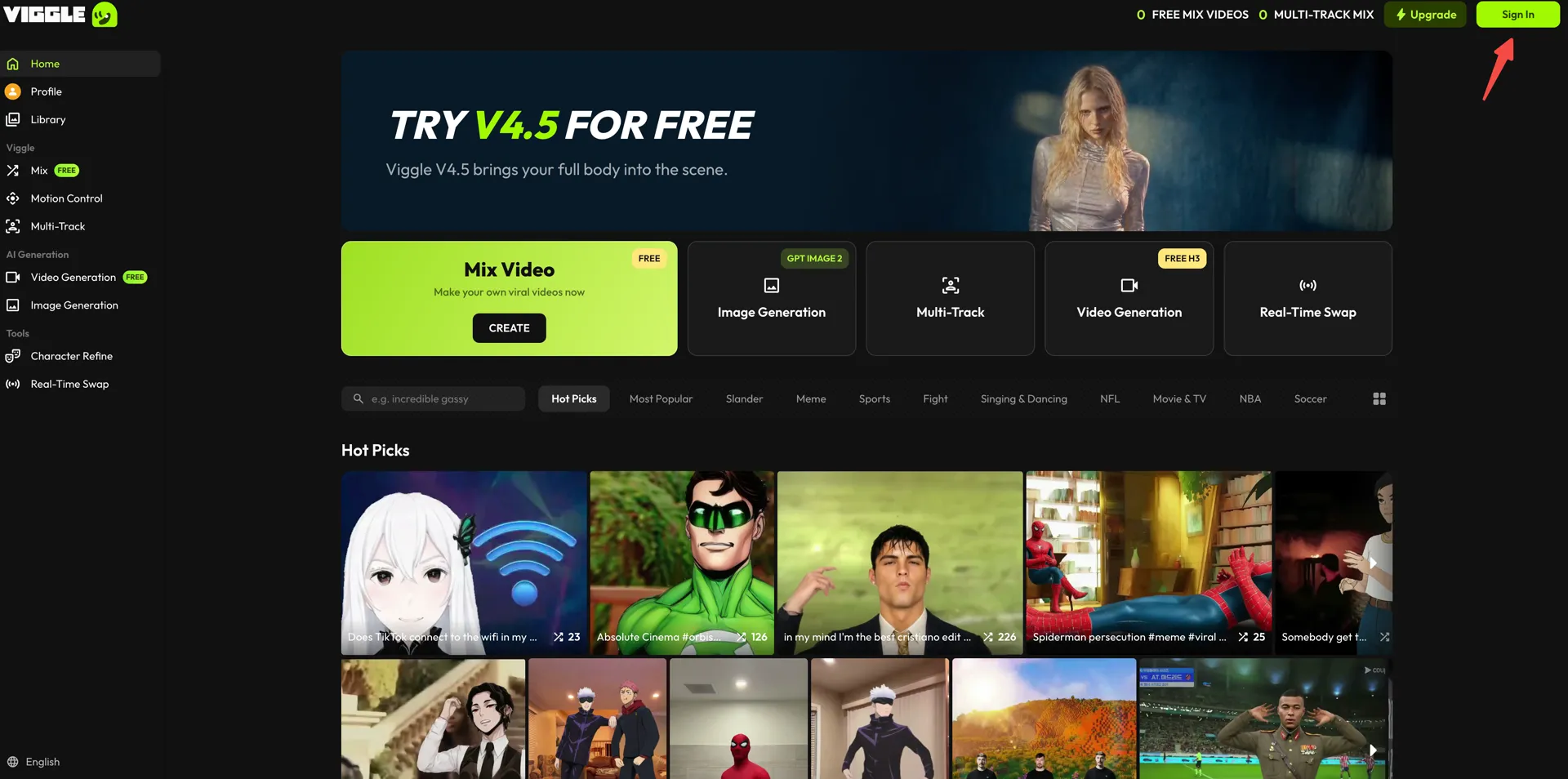
- Sign up on Viggle AI using your email address, or click "Sign In" in the top-right corner if you already have an account.
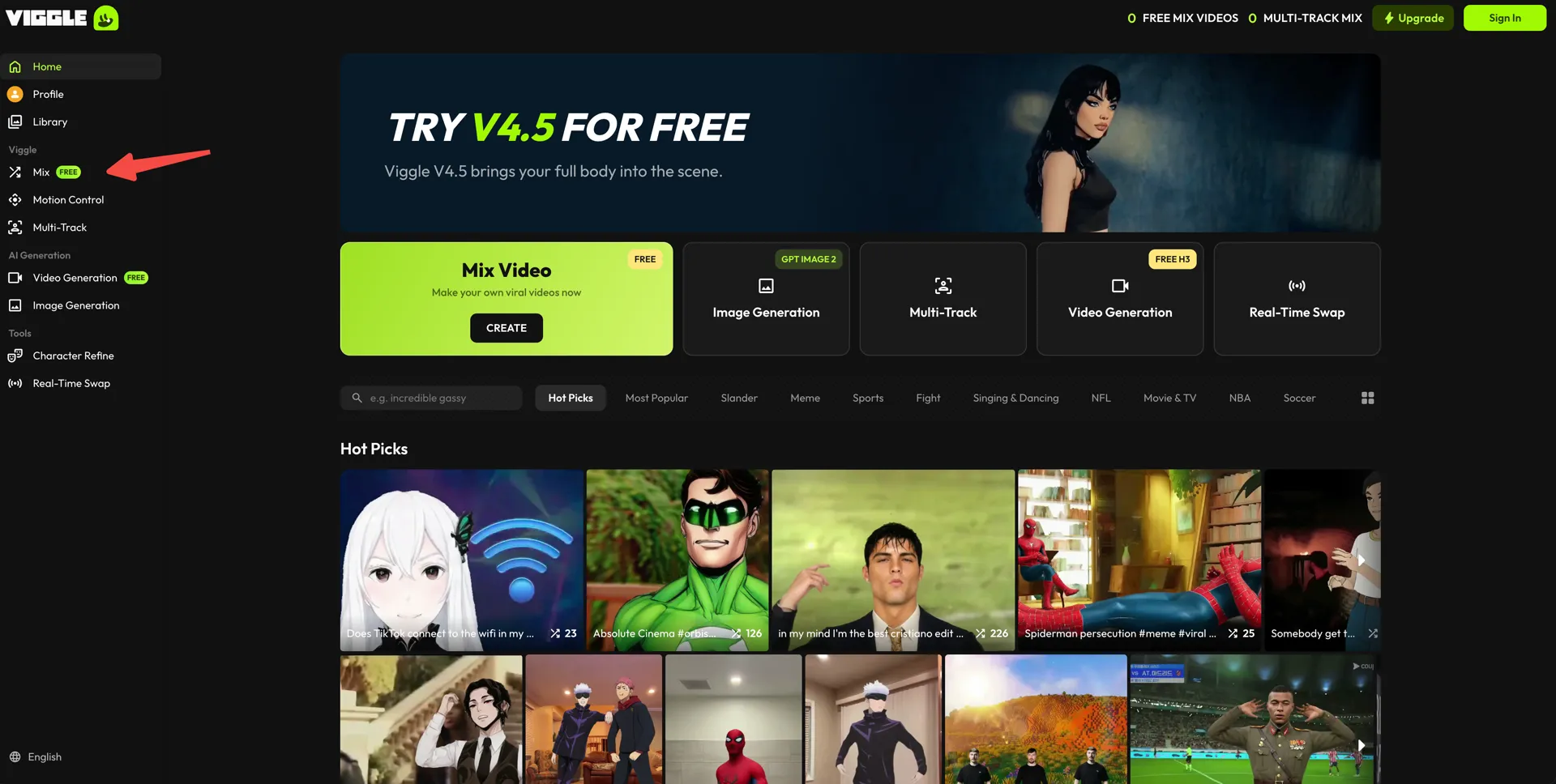
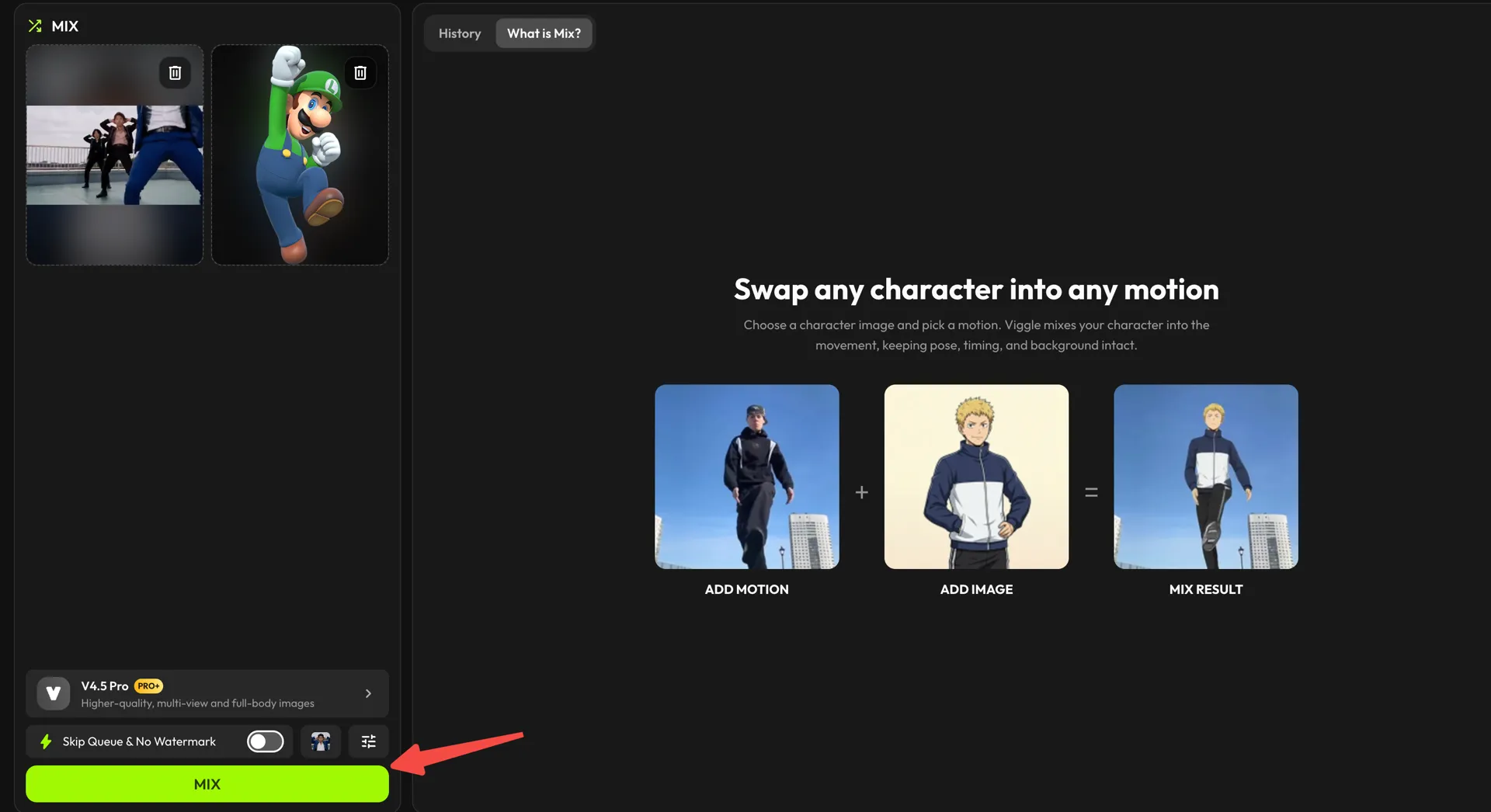
- From the left sidebar, open "Mix." This is the workspace where your photo and a dance clip get combined.
- In the "Add Image" card, load the photo of the person you want dancing:
- Drag the image in, or use "click to upload"
- Or press "Library" to pick a ready-made character
- Make sure the face and body are clear (as we learned earlier)
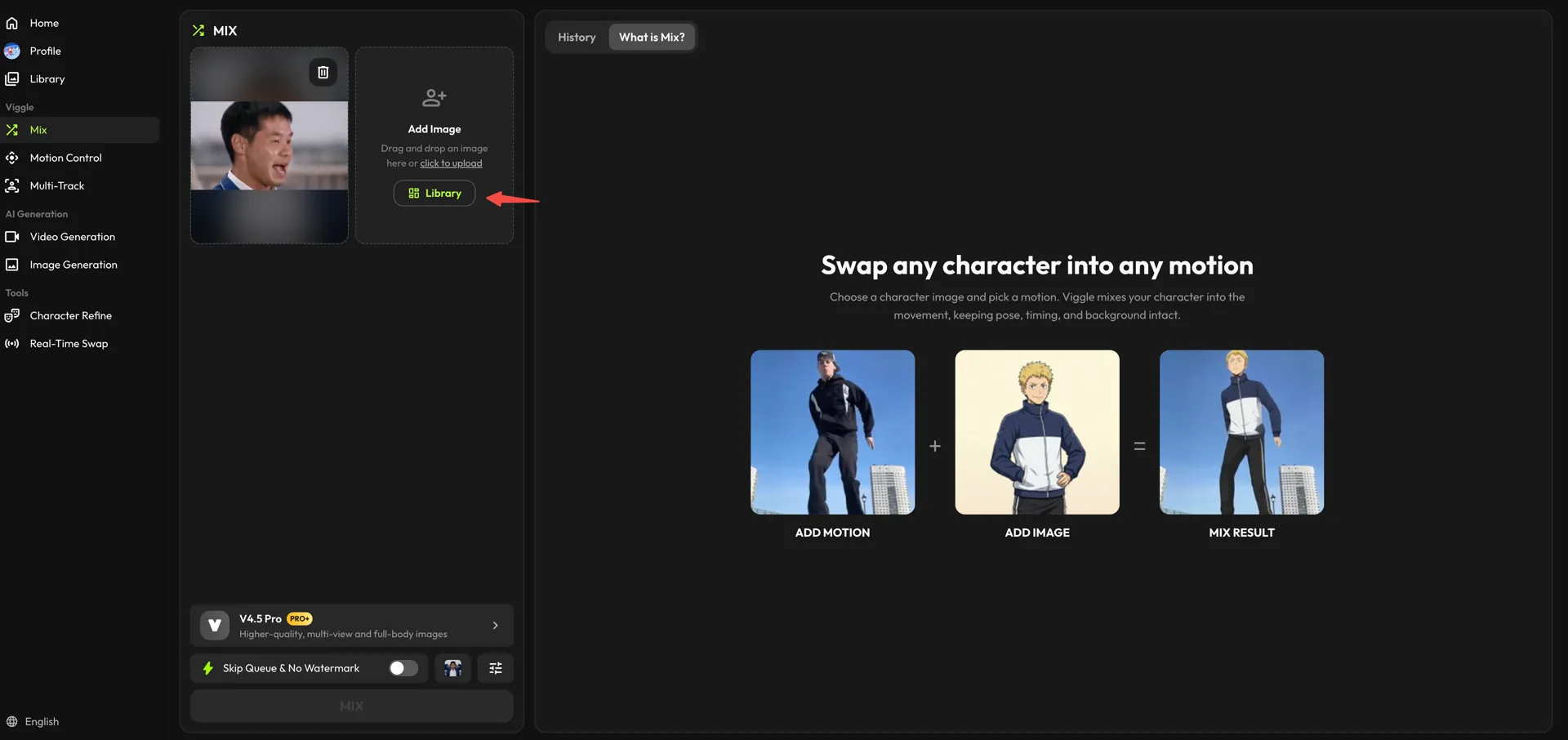
This sets up your character as the star of your dance clip.
- Now fill the "Add Motion" card with the dance itself. Press "Library" to browse Viggle's motion presets — Bollywood, Hip-Hop, TikTok trends, character moves, and funny meme motion swaps are all in there — or pull a clip straight in with the TikTok button next to it. The "Trending Templates" row underneath is the quickest shortcut.
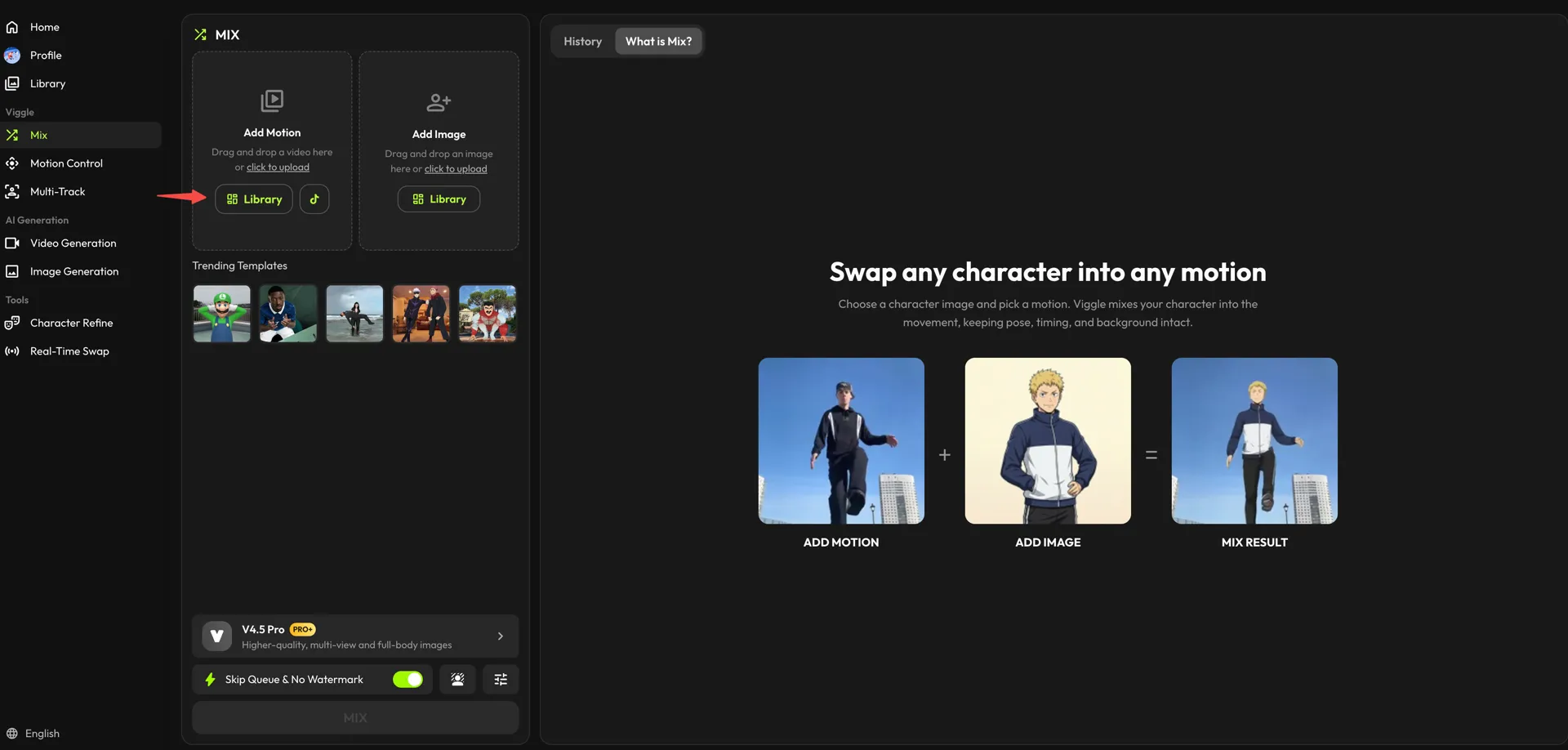
- With both cards filled, check the model at the bottom of the panel (V4.5 Pro gives higher-quality, full-body results) and click "MIX." In seconds, your still image becomes a dancing avatar.
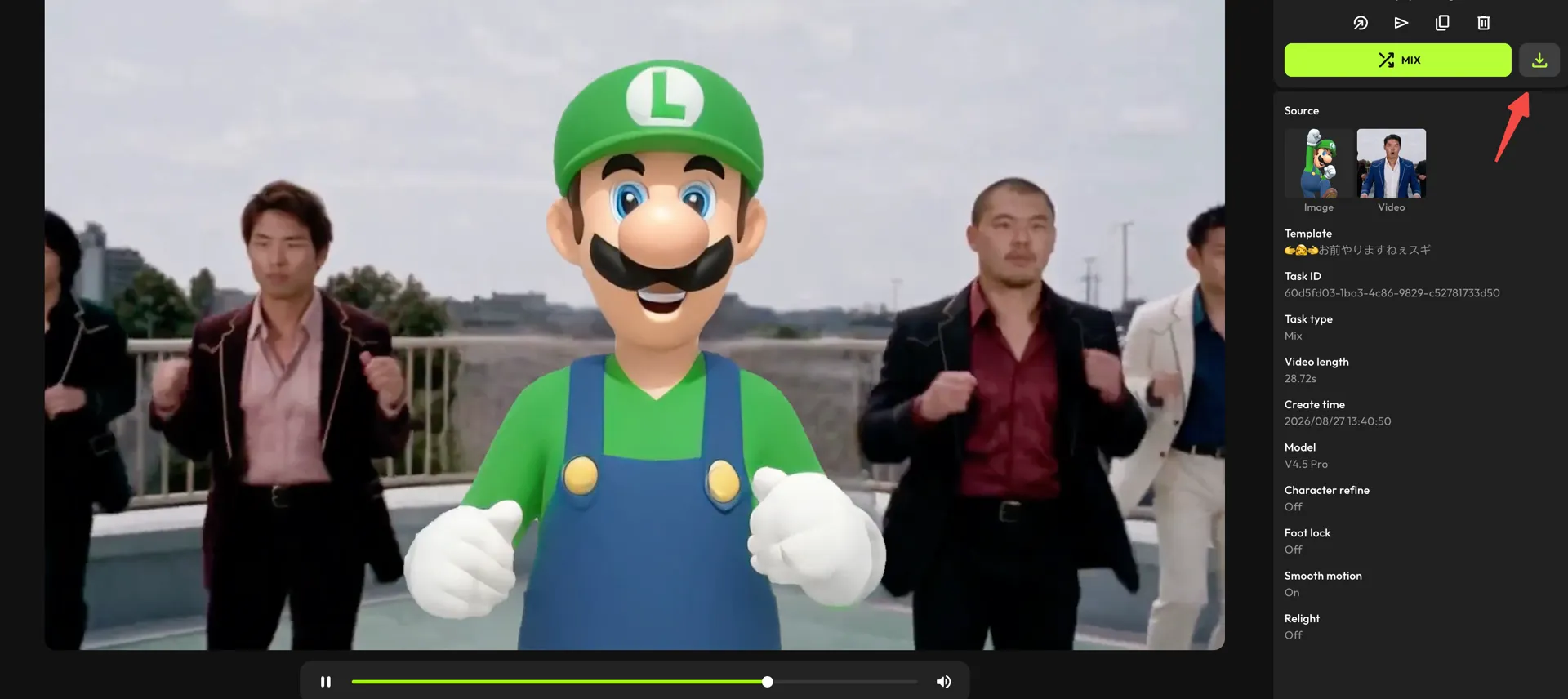
- When the result opens, preview the motion. If you're happy with the output, click the download icon above the details panel to export it for TikTok, Instagram Reels, or YouTube Shorts.
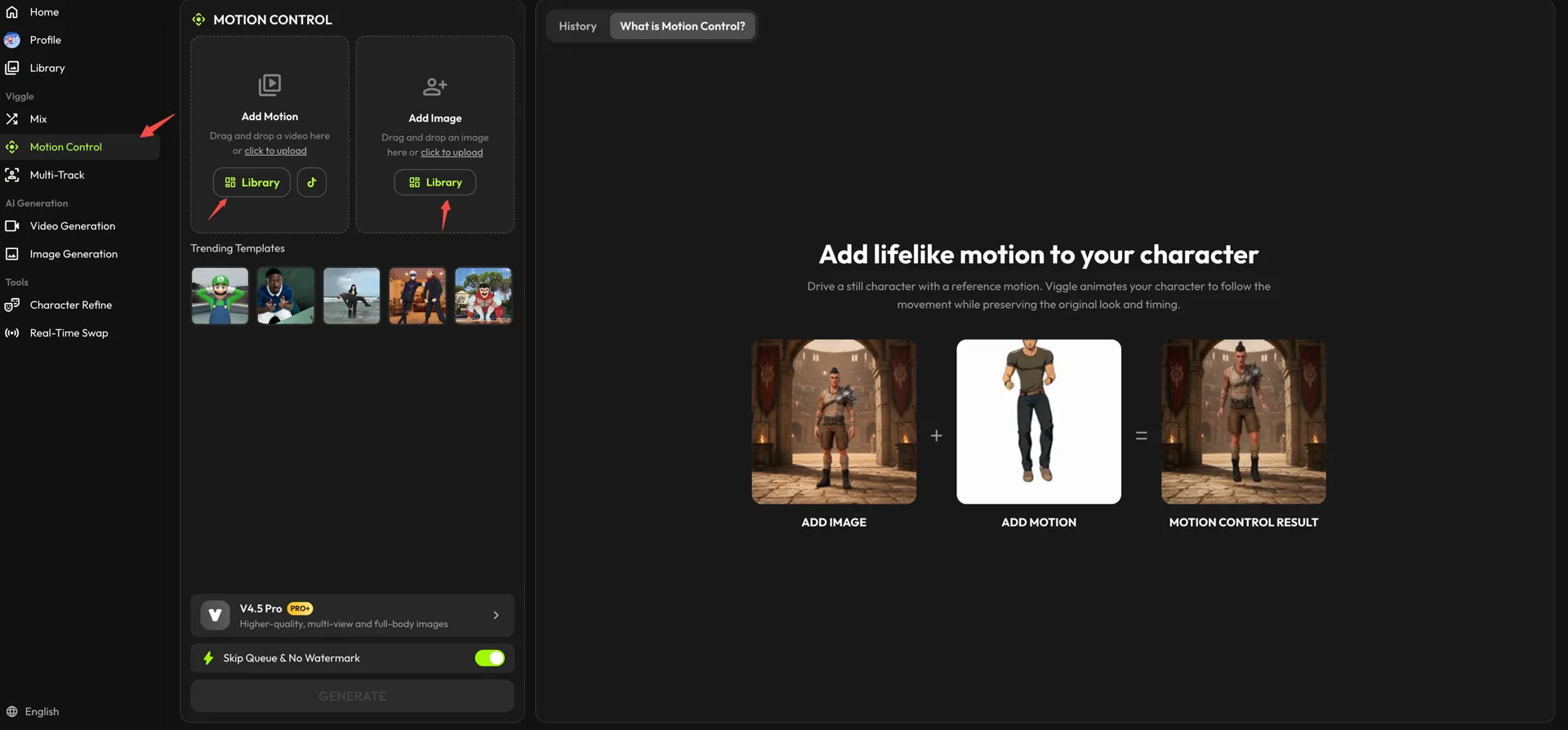
Want to keep your character looking exactly as it does in the photo? Open "Motion Control" in the sidebar instead. It drives a still character with a reference motion while preserving the original look and timing, and it works the same way — one "Add Image," one "Add Motion," then "GENERATE."
Best Practices to Get a Realistic Dance Animation#
The difference between a good dancing video and a bad one usually comes down to what the AI can understand from your photo and the movement you choose. Here's how to set it up for success.
Lighting Tips#
Think about this: if your photo has shadows hiding half your face, how will the AI know which way your character should smile or look while dancing?
Exactly. That's why lighting is the first thing that decides how well the AI can interpret your features. For a quick reference, here is what the difference between a good and a bad lighting setup looks like:
| Lighting Setup | Output Quality | Why |
|---|---|---|
| Bright, even light on the face | ⭐⭐⭐⭐ | AI understands expressions accurately |
| Strong backlight behind the subject | ⭐ | Face becomes unreadable + glitching begins |
Ultimately, good lighting doesn't just make a prettier input, but it actually gives the AI confidence. And when the AI is confident, the dance feels realistic, expressive, and smooth!
Choosing the Right Motion Prompt#
Here's a quick question*: Can the pose in your photo realistically perform the dance you're selecting?* If your character is standing straight but the dance involves crouching, flips, or head-down moves, the AI has no real clue how those missing body parts should behave.
That's exactly when warping and floating limbs begin.
So*, what kinds of motion prompts actually help the AI perform well?*
Here's a simple comparison you can use when picking your dance motion:
| Type of Prompt | Example Prompt | Why It Works (or Doesn't) |
|---|---|---|
| Best Choice (Works) | "Bollywood TikTok-style moves with arms forward and head facing the camera." | - Face stays visible → AI reads expressions correctly - Limbs stay trackable → smoother movement |
| Risky Choice (Might not work) | "Fast breakdance spin with bent posture and arms behind body" | - Face disappears → AI guesses expressions - Hidden limbs → distortion and misalignment |
See how the first option complements what your photo already gives the AI, while the others force it to over-imagine missing information?
This is exactly why the art of prompting matters here, because when the AI can see everything clearly, it can give you the desired results.
Avoid Distortions Before They Happen#
Most glitches in AI dance videos don't happen during motion transfer, but they start in the photo. If your character's arm is cut off, legs are cropped, or the face is too close to the edge, the AI has to guess the hidden parts. And guessed motion transfer rarely looks good.
So before uploading, always check if both eyes are visible, arms and shoulders are fully inside the frame, and if the head has a natural shape (no extreme angles or stretching).
To help you spot red flags even faster:
| Distortion Issue | What It Looks Like | Why It Breaks the Dance |
|---|---|---|
| Cropped limbs | Hand or leg cut from the frame | AI doesn't know where the limb begins or how to move it |
| Stretched or warped face | Long chin / wide forehead selfies | Expressions become unnatural and jittery |
| Low-res edges | Grainy outlines, pixelation | AI can't correctly place motion tracking points |
| Tilted composition | Face angled sideways too much | Head movement becomes stiff or misaligned |
Refine Your Results With a Re-Render#
Even when everything is done right, sometimes the first render may feel a bit off, and that's completely normal. To fix this, ask yourself:
- "Can the face be a little sharper?"
- "Would a slower dance style look more natural?"
- "Does the lighting need a quick adjustment before reuploading?"
Eventually, these reflections on lighting, cropping, or motion help the AI understand your character better!
Conclusion#
Now that you know exactly how to set up the perfect image, choose the right motion prompt, and refine your results with quick tweaks, you're ready to create your own dancing videos. With the AI photo-to-dance functionality of Viggle AI, motion transfer is now even more accessible for everyone.
So, try Viggle today and turn your imagination into some crazy moves. You're just one click away from bringing still images to life and giving your audience something they can't help but watch again and again!
FAQs About AI Photo-to-Dance Videos#
1. Can any photo be turned into a dancing video?#
Most photos work, but clear faces, full silhouettes, and natural lighting give the best results.
2. How long does AI motion animation take?#
Normally, 10-60 seconds, depending on motion complexity and server load.
3. Why does the face sometimes look distorted?#
That's because sometimes the AI struggles when features are blurred, covered, angled too much, or poorly lit.
4. Can I generate multiple dance styles from one photo?#
Absolutely. You can reuse the same photo and apply different motion prompts.
5. Which platforms support AI dance video uploads?#
You can post them directly to TikTok, Instagram Reels, and YouTube Shorts as they export in vertical format.
6. Are AI photo animations safe to use?#
Yes, as long as you upload images you own or have permission to use.