logo

Free AI GreenScreen

Shape scenes with precise motion transfer controls. AI green screen is built as an AI green screen video editor for green screen background replacement, with controllable video generation, character consistency, and fast vertical publishing. Start with one image, one motion source, and refine in-app without a heavy setup.

40M+ Users4.8★ Rating on App Store

How to execute AI green screen background replacement in Viggle

For background-focused pages, combine Image & Video edits with Multi-Track control. This is your green screen video background replacement workflow—swap context while keeping performance motion intact.

Step 1
Plan AI green screen scene intent

Plan AI green screen scene intent

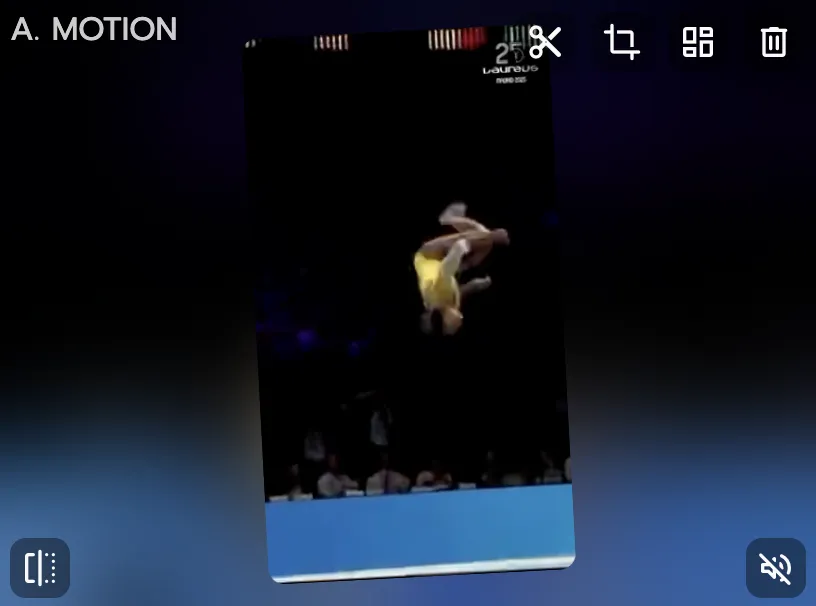
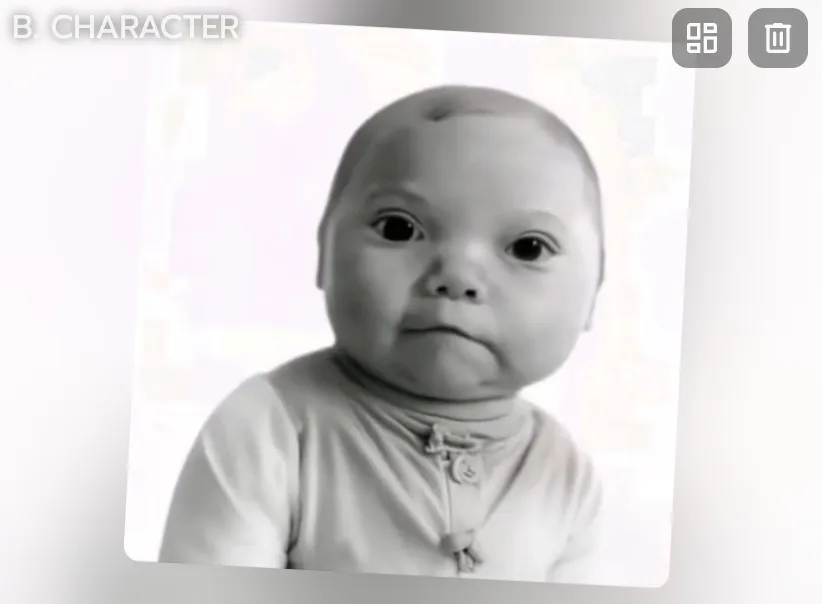
Define target background style, framing, and movement rhythm first. Upload one clean character source and a matching template. This gives you a stable baseline before replacement edits.

Step 2
Generate base clip and replace context

Generate base clip and replace context

Generate a first version in Mix or Image & Video. Use Multi-Track object selection and replacement for scene updates. Check edges and motion continuity after each change.

Step 3

Fine-tune timeline and export

Align transitions, cut points, and background continuity in Multi-Track. Regenerate only problematic segments instead of the full clip. Export vertical-ready outputs for distribution.

Why AI green screen creators choose Viggle

Image & Video supports practical scene and object replacement

For AI green screen, Image & Video can handle object-level edits in video workflows. That helps creators reshape scene context without rebuilding everything. It is useful for fast concept pivots and campaign variants.

Edit Scene

Multi-Track keeps timeline control during complex edits

You can sequence cuts, track character timing, and manage replacement moments in one editor. Multi-person and object edits can be coordinated without splitting into separate tools. This reduces workflow fragmentation for frequent publishers.

Use Timeline

Mix keeps character motion anchored while context changes

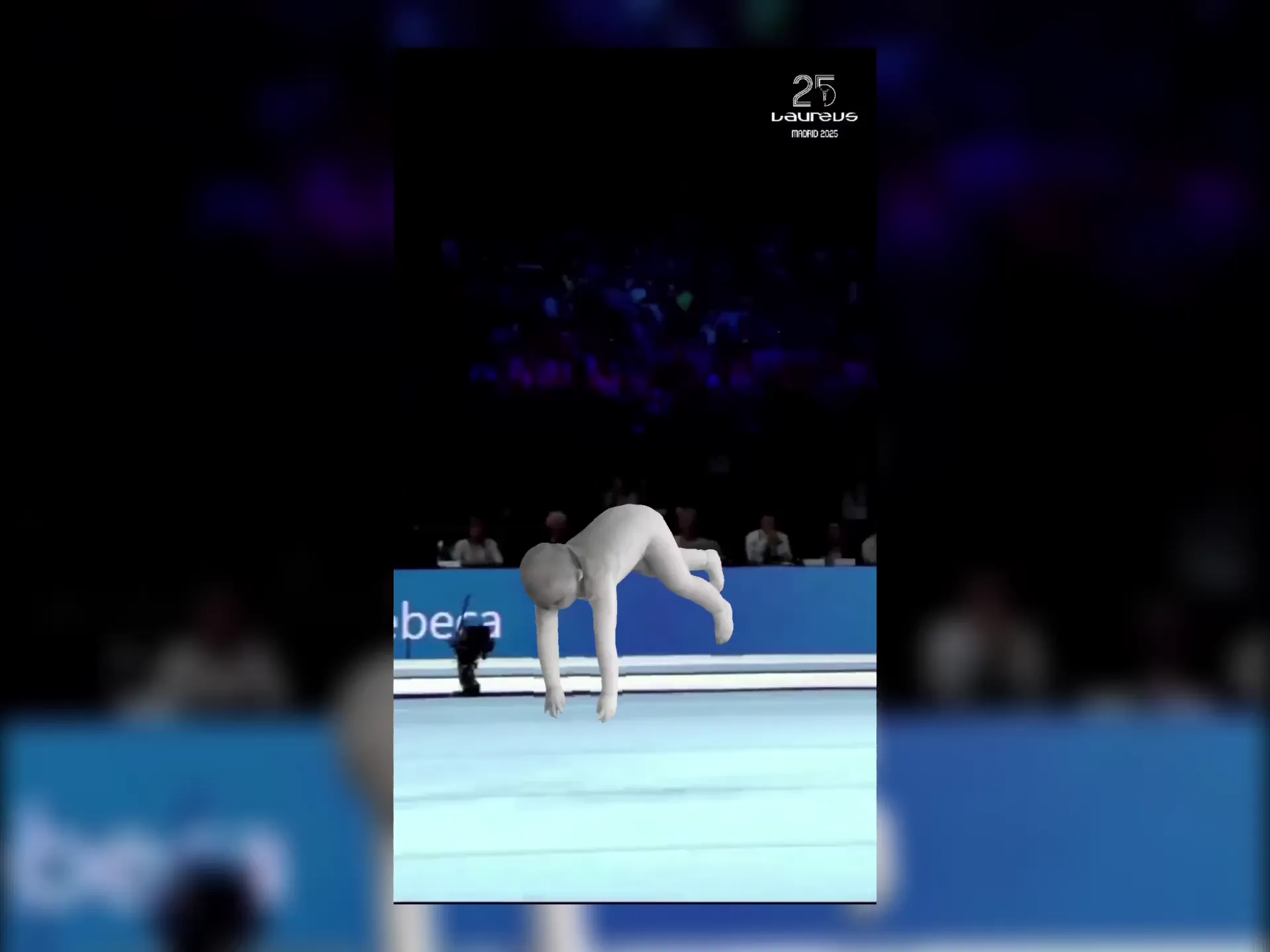
Start from one image plus one motion source, then adapt scene context as needed. Controllable motion transfer helps prevent performance drift across versions. Facial structure and expression stay more coherent from draft to final export.

Anchor Motion

JST-1 improves coherence in dynamic scenes

The self-developed video-3D foundation model is built for motion-aware generation. Facial and body behavior stay better aligned during energetic movement. That is helpful when camera or scene complexity increases.

Model Advantage

Free-to-use workflow helps teams test multiple scenarios

For digital artists teams shipping AI green screen, iteration speed matters more than one perfect render. Viggle supports quick experiments with broad template coverage. Start free and validate ideas quickly before scaling production.

Ship Faster

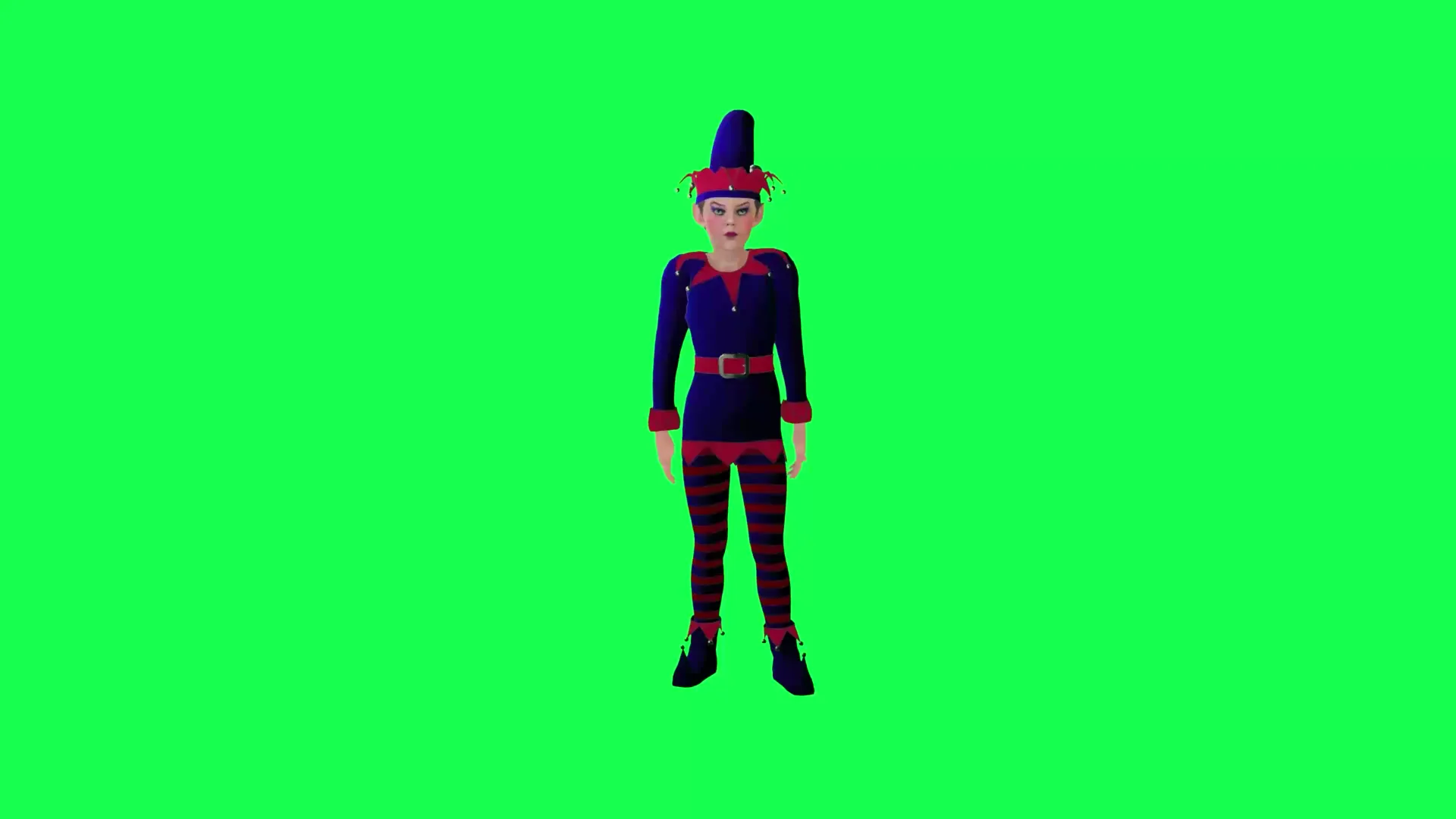
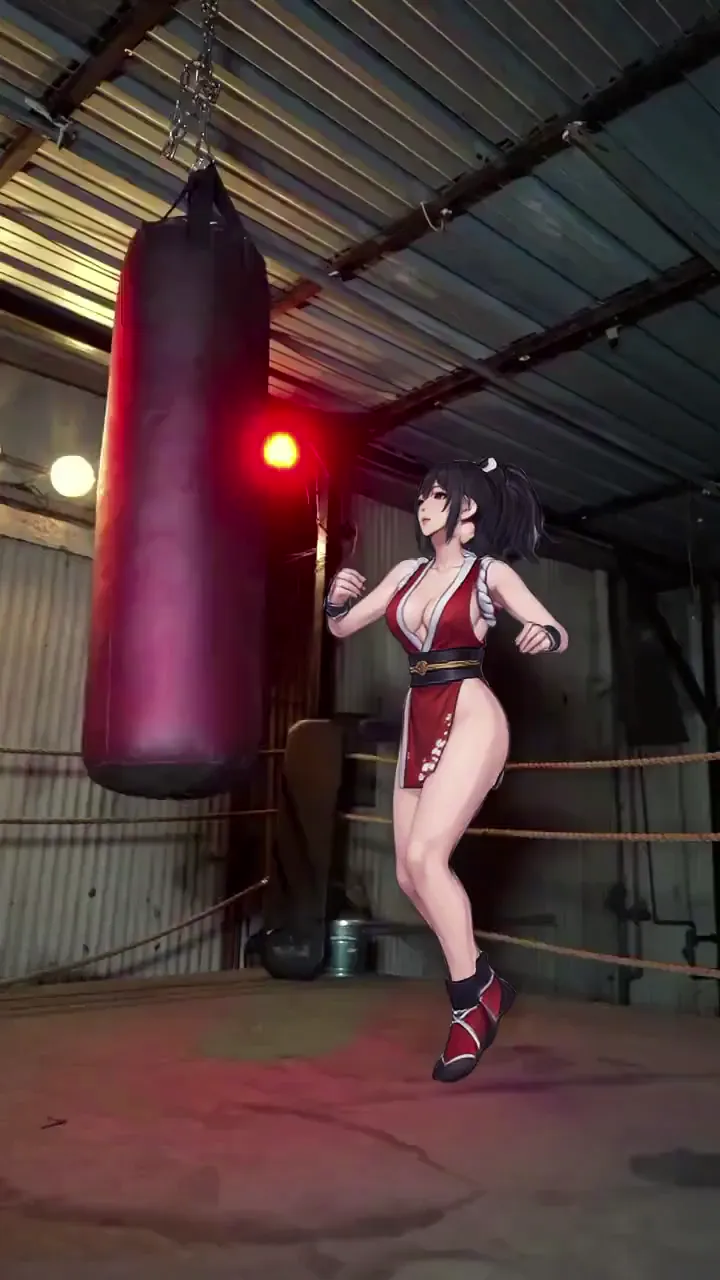
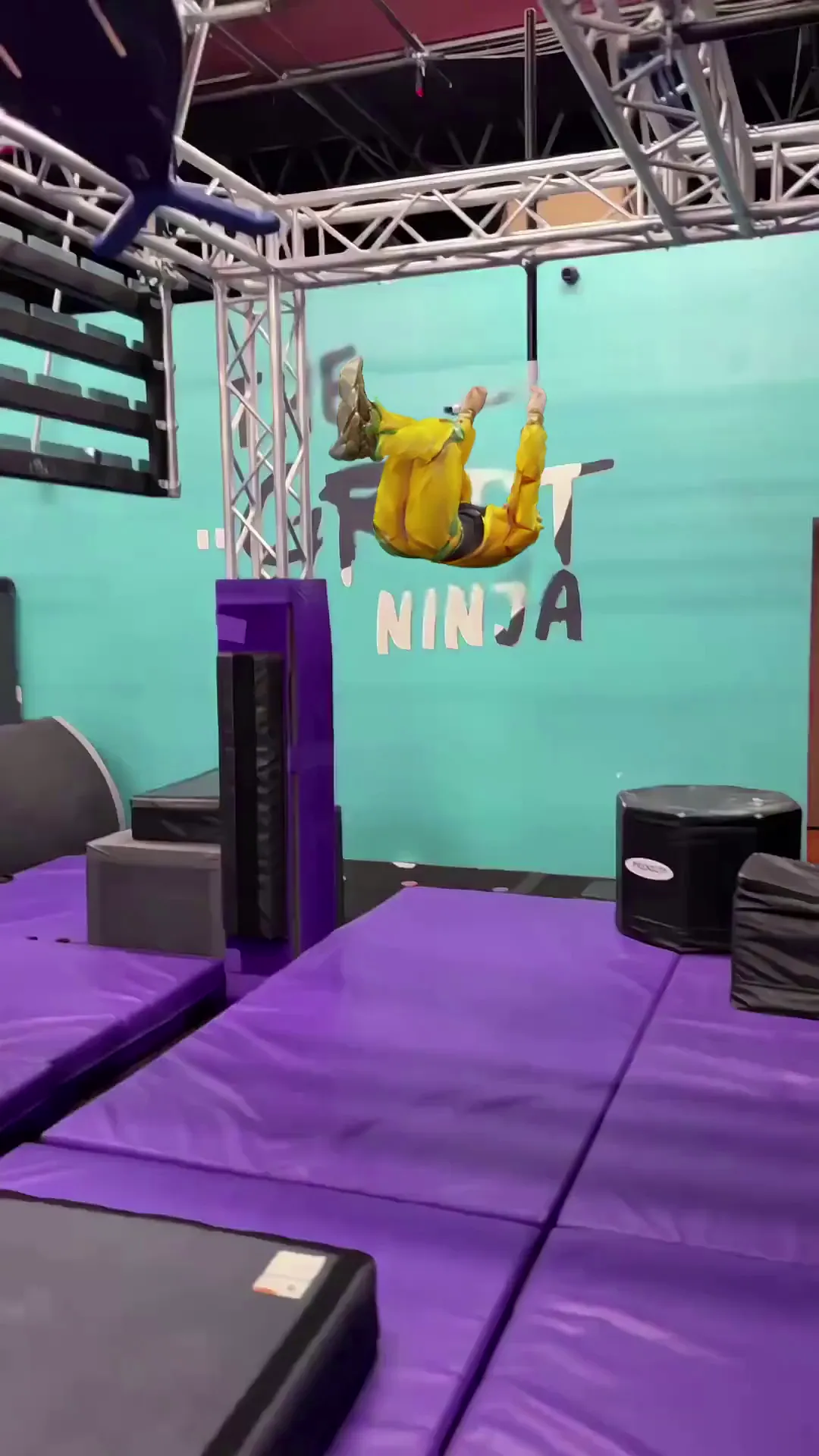
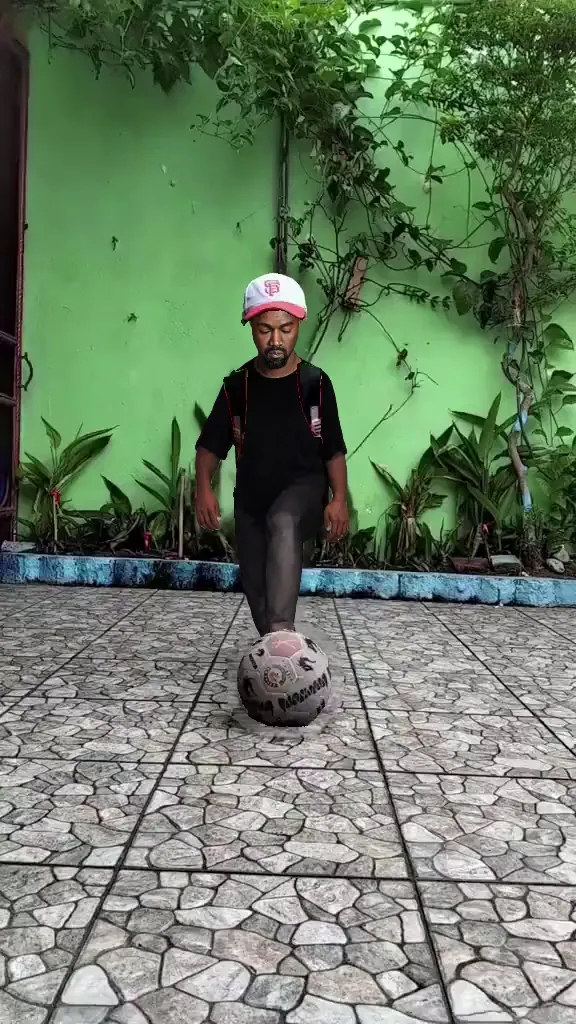
AI Green Screen examples made with Viggle

Who Uses AI Green Screen

01

Indie Game Developers

Indie game developers swap environment art behind character footage to test visual themes before committing to full renders. They iterate on scene variants quickly and keep the strongest compositions for trailers and social clips.

02

Brands and Marketers

Marketing teams drop product demos or spokespeople into branded backgrounds without booking studio time. This lets them produce seasonal campaign variants faster and maintain visual consistency across ad sets.

03

Filmmakers and Previs Artists

Filmmakers use AI green screen to composite actors into location plates during pre-visualization. It helps validate framing and lighting direction early so on-set shoots require fewer retakes.

04

AI Filmmakers

AI filmmakers combine generated characters with AI-created environments to build full scenes without physical sets. The controllable motion layer keeps performances grounded even when backgrounds are entirely synthetic.

05

Animators and Motion Designers

Motion designers isolate subjects from live footage and composite them into stylized or abstract backgrounds. This bridges the gap between live-action capture and motion graphics pipelines.

06

Music Video Creators

Music video creators place performers into surreal or thematic environments that match the song mood. They can test multiple visual concepts per track and finalize the strongest look without reshooting.

Viggle vs other AI green screen tools

Try Viggle Free
功能Viggle AICapCutCanvaUnscreen
AI green screen background removal⚠️ Limited⚠️ Limited⚠️ Limited
Controllable motion during background swap
Full body motion preservation
Character consistency during movement⚠️ Limited⚠️ Limited⚠️ Limited
Lip movement transfer
8,000+ templates⚠️ Limited⚠️ Limited
Multi-Track timeline edits
Free to use⚠️ Limited

AI Green Screen Frequently Asked Questions

Do I need a physical green screen for an AI green screen video editor workflow?

No. Viggle's JST-1 model works with any background, not just green screens. You can replace any background environment without special filming equipment—like a green screen remover for AI background replacement.

How does Viggle's virtual green screen compare to CapCut or Canva?

Viggle uses 3D-based motion understanding instead of 2D segmentation. This means your character stays coherent during complex motions like spinning or dancing. Competitors often struggle with edge artifacts during movement.

Can I replace just the background while keeping my character's motion?

Yes. Mix keeps character motion anchored while Image & Video handles background replacement. The JST-1 model maintains facial structure, expressions, and body motion during the scene swap—like an AI video background replacer.

How do I handle edge quality when characters move fast?

Use Multi-Track to check edges after each change. Regenerate only problematic segments rather than the full clip. For best results, use source images with good contrast against backgrounds.

Can I add virtual sets or scenes as backgrounds?

Yes. Image & Video supports object and scene replacement. You can composite characters into virtual sets, real-world locations, or creative scene compositions.

Does Viggle work for full-body green screen replacement?

Yes. Unlike tools that only handle face replacement, Viggle's full body swap replaces both face and body motion. This is useful for dance videos, fitness content, and performance clips.

Can I export with a transparent background?

You can export 1080p without watermark on Pro and Max plans. For transparent backgrounds, you may need to composite in additional editing tools after export.

Ready to launch AI green screen?

Try Viggle Free

Create AI Green Screen
with confidence

Use motion control, character consistency, and creator-first workflows to ship AI green screen content faster. Free to use, no credit card required to start.