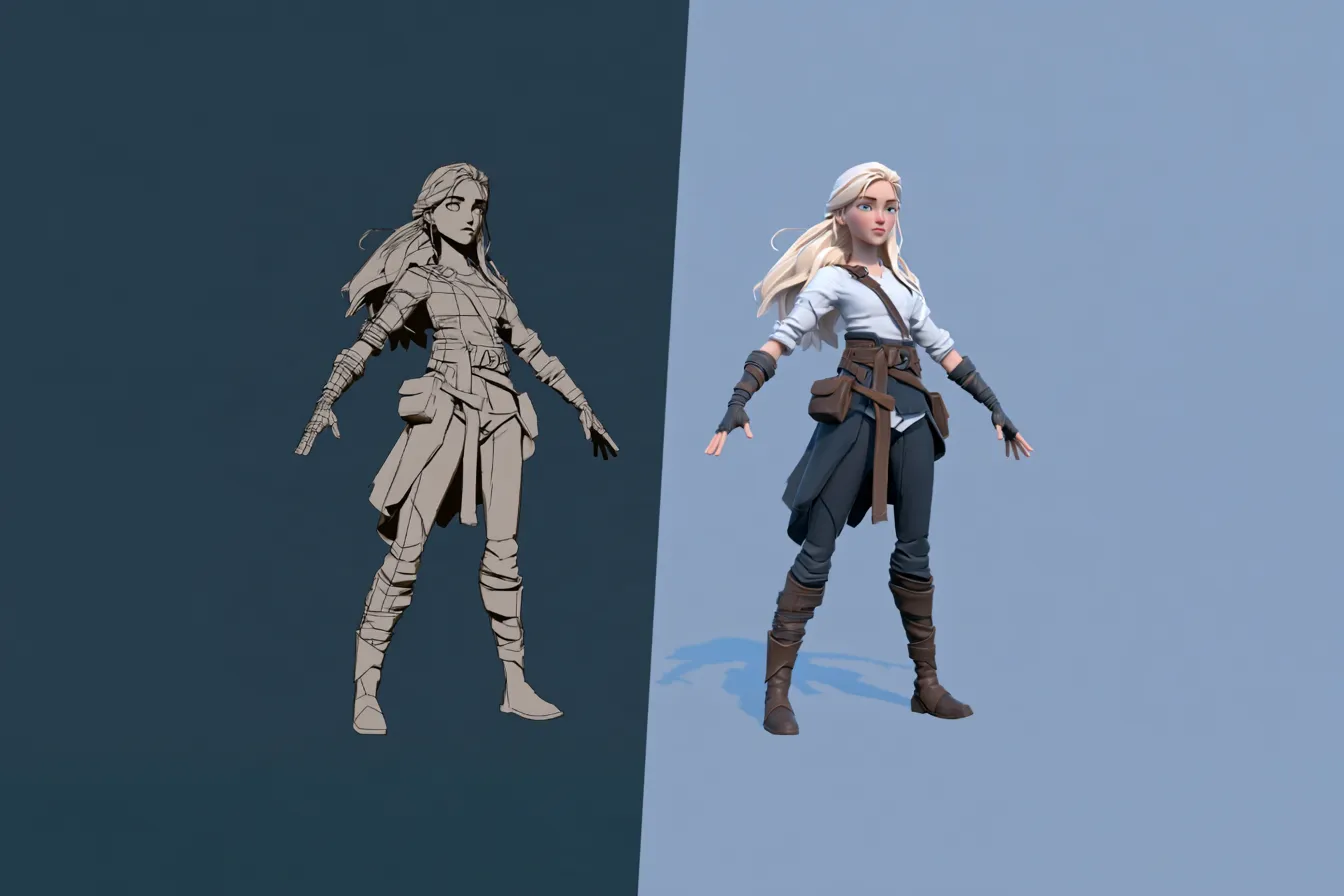
PINOC vs Autodesk Flow Studio for Character Animation From Video
PINOC vs Autodesk Flow Studio for video-to-3D character animation: export formats, AI mocap, and which pipeline each one fits.
Aastha Kochar
Key Takeaways#
- Flow Studio and PINOC are designed for different animation workflows, with Flow Studio focused more on shots and scenes and PINOC on reusable character motion.
- Flow Studio is a better fit for live-action footage, compositing, and cinematic work.
- PINOC lets you bring your own model, auto-rig an unrigged mesh or map an existing rig, apply motion, preview it on the character, and export the character with its motion for use in another 3D workflow.
- The better choice depends on the type of output your project requires.
- If you work across cinematic and game projects, you can use both tools for different parts of the workflow.
If you already have the footage, how do you get that performance onto a 3D character? Autodesk Flow Studio and PINOC both can do that, but at different stages of the production process. Flow Studio takes live-action footage into a CG scene, while PINOC extracts the performance as reusable character motion you can preview and export for another 3D workflow.
That difference can affect which footage you can use in the first place. PINOC can take a phone or webcam recording, a screen recording, or found footage, provided there's one clearly visible person whose full body isn't obstructed.
So if you're comparing the two, look at where that movement needs to end up, what you need to export, and how much control you need before it gets there.
Quick note: Autodesk acquired Wonder Dynamics in 2024, and the product was later renamed Flow Studio, so older articles, tutorials, and discussions may still refer to Wonder Studio. More importantly, some older comparisons don't reflect the product's current capabilities.
What Does Autodesk Flow Studio Actually Do?#
Autodesk Flow Studio turns live-action performance into a CG character workflow. Its AI Motion Capture analyzes footage to capture an actor's body, hand, and facial movements, then applies that performance to a CG character. From there, you can work with the animation inside Flow Studio or export it as FBX or USD for further work in Maya, Blender, Unreal, and 3ds Max.
If you're working with live-action footage, it can place a CG character into the scene and handle parts of the process that would otherwise require character animation, lighting, camera tracking, alpha masks, and clean plates. Its Video to 3D Scene workflow can also reconstruct footage into an editable 3D scene with characters, environments, cameras, lighting, and animation.
- AI Motion Capture
- Character retargeting
- Live-action to CG
- Shot-ready data
- 3D scene reconstruction
- Animation exports
- Broader production tools
If you’re a character animator or VFX artist, Flow Studio can work as a production tool, whereas PINOC is more focused on turning video into reusable character motion that you can preview, adjust, and export for your own animation or game projects.
Which Flow Studio Mocap Mode Fits Your Camera?#
Flow Studio's AI Motion Capture works from ordinary video footage without mocap suit, markers, or dedicated capture hardware. It currently gives two AI Mocap modes:
- Static Camera for fixed-camera footage on relatively flat ground, which provides more stable and accurate 3D pose reconstruction.
- Dynamic Camera for moving-camera footage or scenes with uneven terrain and changing elevation.
If you're able to lock the camera, keep the performer clearly framed, the pelvis and feet visible; the platform will handle the rest. If you're working with a handheld or moving camera, it can still process the video through Dynamic Camera mode, but there can be some variations in 3D-space reconstruction.
That’s an important difference for our comparison because “works from video” doesn't mean any video will produce the same result. Flow Studio gives you flexibility around the capture setup, but the camera, framing, ground conditions, and visibility of the performer all influence which mocap mode you should use and how stable the resulting 3D motion will be.
What Does Flow Studio Need From Your Footage?#
For Flow Studio, you need an actor in the footage whose performance can be captured. You upload the video, Flow Studio identifies the actors, and its AI Motion Capture extracts their body, hand, and facial performance. It can work with regular camera footage, so no mocap suit or dedicated capture hardware is required. But of course, there are certain limitations:
- MP4 and MOV footage only.
- Up to 2 minutes of processed footage per project.
- Up to 15 shots in one uploaded video.
- Shots need clean hard cuts; transitions aren't supported.
- Extreme close-ups may fail when too little of the actor is visible.
- Keep the pelvis and feet visible in wide shots whenever possible.
- Occlusion is only partially supported and can reduce accuracy.
- Sunglasses and heavy facial hair can reduce facial-capture accuracy.
- Character-object interactions aren't reliably supported.
- Overlapping actors can reduce accuracy when one character blocks another.
- Static Camera works best for fixed-camera footage on relatively flat ground.
So if you're capturing footage yourself, you have some control over these limitations. But if you're working with existing footage, they become part of the decision before you even start processing.
What Does Each Tool Give You When You Export?#
In Flow Studio, depending on the project type and the export options you select, you can take out the character animation, camera tracking, clean plates, alpha masks, character passes, full 3D scenes, and other VFX elements as separate assets. For character animation specifically, the important export is AI MoCap. Flow Studio retargets the captured performance to the character's bones and exports baked animation data.
You can export AI MoCap as FBX or USD, but FBX bakes animation only onto the bones selected during character validation, while USD bakes animation onto all bones in the rig.
| Question | Autodesk Flow Studio | PINOC |
|---|---|---|
| Primary output | Character animation and VFX/3D scene elements | Reusable character motion |
| Motion formats | FBX, USD | FBX, GLB (USDZ when exported with a preview body) |
| Rig | Validated character rig | Mixamo or MetaHuman, with support for auto-rigging or mapping an existing rig |
| Own-character workflow | Retargets captured performance to the validated character rig | Bring your own model, auto-rig an unrigged mesh or map an existing rig, apply and preview motion, then export the character with its motion |
| FBX | Baked animation on validated bones | Motion on the selected rig |
| Other exports | Camera, clean plate, alpha mask, character passes, etc. | Motion asset |
What’s Relevant for Artists#
If you're exporting just the performance, Flow Studio's AI MoCap export is the relevant piece. FBX gives you baked animation on the retargeted bones, while USD gives you baked animation across all bones in the rig.
But if you're working on a VFX shot, Flow Studio's export options are considerably broader. You can take out the motion capture along with camera tracking, clean plates, alpha masks, character passes, textures, and other elements, or export an assembled 3D scene and continue working on the shot elsewhere.
Eventually, Flow Studio can export the performance as part of a larger shot or scene workflow; PINOC treats the performance itself as the main asset.
How Does PINOC Handle Video to Motion Differently?#
PINOC keeps the workflow focused on turning a real performance into 3D motion data that you can continue working with in a standard 3D pipeline. The model is trained with physical priors, which helps it preserve the movement's timing, amplitude, weight shifts, and contact with the ground. Here’s how:
Creator visual_salman breaks it down, from the reference video to PINOC mocap, then into Blender for the final shot. View the original reel on Instagram.
It also handles the character side of the workflow. You can bring in your own 3D model, auto-rig it if it is unrigged or map an existing rig, then apply the generated motion and preview it directly on the character. You can adjust the motion before exporting the character and its animation together. Uploading, rigging, and retargeting your own character do not consume credits.
If there is no video reference to work from, PINOC handles the other side of the workflow through text-to-motion. This way, you describe the movement in natural language and PINOC generates 3D character animation from the prompt, with multiple variations to choose from.
This makes PINOC a motion-generation layer for a 3D workflow where video provides the performance when you want to capture something specific, text provides an alternative when no reference footage exists, and the output is animation data that you can preview, retarget, adjust, and take into your existing pipeline.
What Does Flow Studio Cost and Is the Free Tier Usable?#
Flow Studio offers a free tier alongside paid plans, but pricing and credit allowances depend on the subscription level.
- Free ($0/month): Includes 300 credits per month, along with access to Flow Studio features such as AI Motion Capture. No credit card is required to start.
- Lite ($7/month when paid annually): Includes 2,100 credits per month.
- Standard ($30/month when paid annually): Includes 6,000 credits per month and access to Live Action Advanced.
- Pro ($64/month when paid annually): Includes 12,000 credits per month, along with higher-generation limits and additional features.
- Enterprise (Contact sales): Includes 48,000 credits per month and higher limits for concurrent 3D asset generation.
It uses a credit-based system, with different project types consuming credits according to processing time. The charge is per second and resets each month, so the amount of work you can complete depends on how much processing your projects require. If you prefer month-to-month flexibility, the pricing for monthly billing is:
- Lite: $10/month
- Standard: $45/month
- Pro: $95/month
- Enterprise: Contact sales
Autodesk also clarifies that a 1-year or 3-year subscription can save 33% compared with the monthly price, while monthly billing gives you a no-contract option and more flexibility.
So, Is the Free Tier Usable?#
Yes, for testing and smaller projects. The 300 monthly credits give you a way to try Flow Studio without paying upfront, but the allowance is limited compared with the paid plans. Since different processes consume credits at different rates, how useful the free tier feels will depend on the type and length of projects you're creating.
So, if you’re evaluating Flow Studio before committing to a subscription, the Free plan can be a good starting point. If you're using it regularly for longer or more processing-heavy projects, the larger credit allowances on the paid plans can become more relevant.
For comparison, PINOC is free to start with 60 trial credits, no card required, and 2 generated-asset exports on the Free plan. Library motion, built-in animations, and your own rigged characters are unlimited and don't count against that limit. The free tier is non-commercial; paid plans start at $12.99/month with commercial use and unlimited exports. Current numbers live in the product under Account, so check them there.
Can You Use Both Tools in One Pipeline?#
Yes. If you work across both narrative and game projects, both can complement each other because they handle different types of output.
- Flow Studio fits cinematics and trailers that rely on live-action plates, compositing, and camera work.
- PINOC is better for locomotion, combat, idles, NPC behaviour, and other reusable motion assets.
- Previs can work with either, with PINOC often having the advantage when you have limited or unconventional reference footage.
What you need to take care of is to treat both as production aids, not one-click replacements for animation work. You may still need cleanup and manual refinement, particularly for jitter or foot sliding. On the PINOC side, Ground snap and Pin feet in Adjust Motion handle the most common foot-contact problems before you export. Either way, you’re getting a good starting point faster without removing the role of an animator from the process.
Frequently Asked Questions#
What happened to Wonder Studio?#
Wonder Studio is now Autodesk Flow Studio. Autodesk acquired Wonder Dynamics in May 2024 and introduced the new Flow Studio branding in March 2025. The product itself continued under the new name and didn’t shut down. You may still come across Wonder Studio in older records because some resources are still hosted on the Wonder Dynamics domain.
Does Autodesk Flow Studio export FBX?#
Yes, but there are limitations. When you export AI motion capture as FBX, the file contains baked animation for the bones selected during character validation. Bones that were not assigned, including deformation bones, are excluded. So, if preserving the full skeleton is important, USD is the better export option.
Is Autodesk Flow Studio free?#
Yes, Flow Studio has a free plan but it’s limited. The free version adds a watermark, limits output to 720p, and provides 300 credits. Based on the listed usage, that is roughly enough for 15 seconds of Live Action or 30 seconds of capture. That makes the free tier useful for testing the workflow, but you might still need a paid plan for bulk or regular commercial production.
Can Flow Studio capture two characters interacting?#
No. Flow Studio doesn’t currently support character-to-character or character-to-object interactions. For these types of shots, you'll need another capture solution or manual animation to handle the interaction.
Does Flow Studio work with 3ds Max?#
There’s no native 3ds Max integration. Flow Studio provides assembled-scene support for Blender, Maya, and Unreal Engine, while 3ds Max can be used through USD. If your pipeline is built around 3ds Max, you'll need to work through a USD-based workflow.
Which tool should a game developer choose?#
Go for tools that give you reusable animation data. Here, Flow Studio can help if and when your priority is cinematic work involving live-action footage and compositing. The safest approach is to test the tools with an actual animation or cinematic from your pipeline and see which output fits the final deliverable with less cleanup.
Conclusion#
Flow Studio and PINOC take different approaches, and that is probably the most useful thing to keep in mind when choosing between them. Flow Studio is built more around shots and scenes, while PINOC is built around character motion that can be reused elsewhere. To see how it can work for your projects, try PINOC, it's free to start.