How to Use Mixamo Animations and Get Custom Motion Free
A 2026 guide to using Mixamo animations, from upload to export, plus the free way to get the custom motion Mixamo’s library cannot give you.
Viggle

Key Takeaways#
- Mixamo is a free Adobe tool that auto rigs a humanoid character and applies preset animations from a large library.
- You upload a character as FBX, OBJ, or ZIP, place a few markers, and Mixamo rigs it automatically.
- Mixamo animations are royalty free for personal, commercial, and non profit projects.
- The catch is that Mixamo only works with humanoids and only offers preset clips, not custom motion.
- Its library has not grown much in years, so specific or signature moves simply are not there.
- Viggle PINOC captures custom motion from any video and outputs the same Mixamo-named skeleton.
- Use Mixamo for common moves, then PINOC for the performances the library cannot supply.
Mixamo is one of the most useful free tools in 3D, and for good reason. It auto rigs your character in a couple of clicks and hands you a library of ready animations, all royalty free. For a lot of creators, it is the fastest way to make a static model move.
But there is a ceiling built into it. Mixamo gives you preset clips, and only preset clips. The moment your character needs a specific move that is not in the library, Mixamo has nothing for you.
This guide covers how to use Mixamo animations properly, from upload to export, and then the best way to get the custom motion Mixamo cannot give you.
What is Mixamo?#
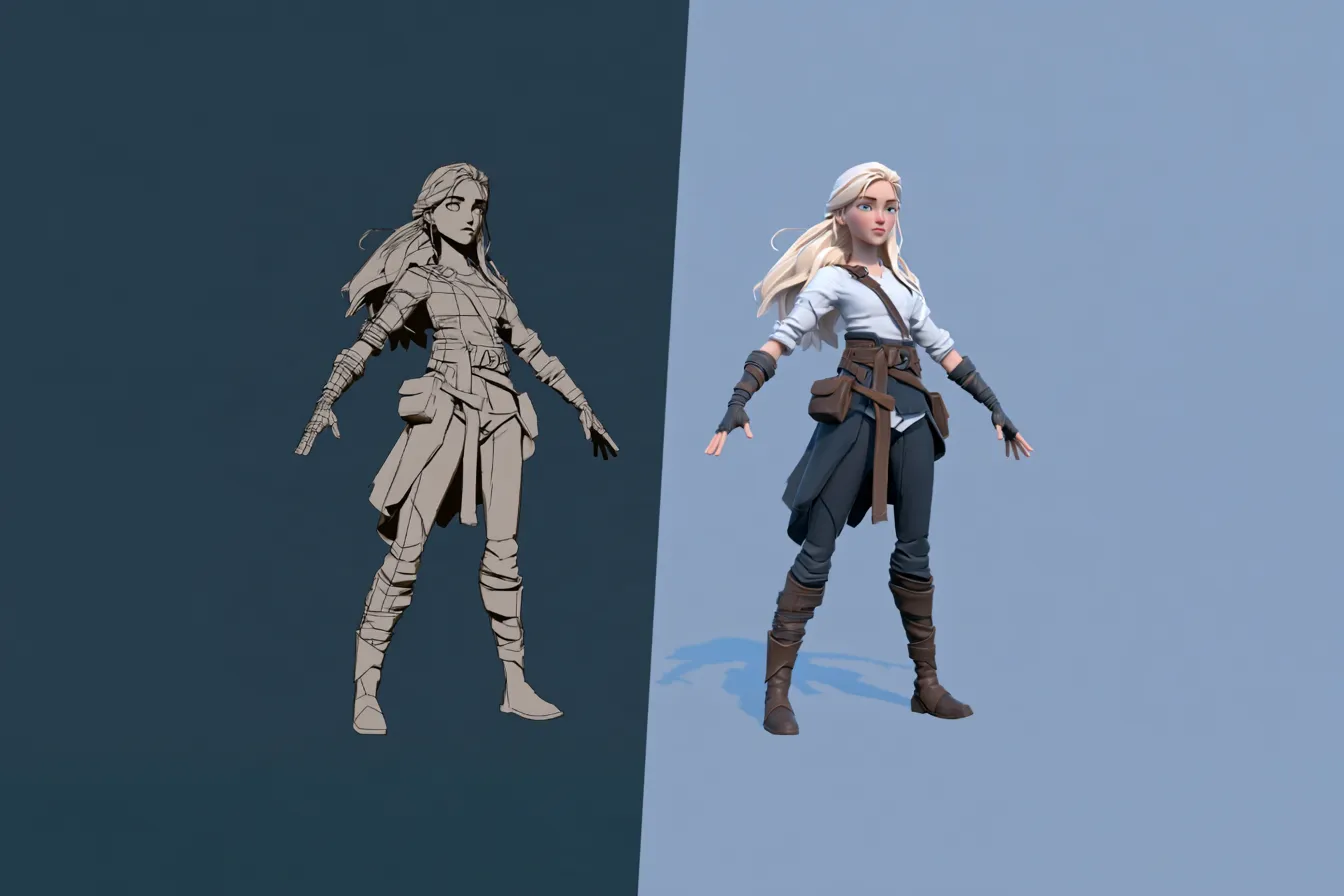
Mixamo is a free Adobe service that automatically rigs humanoid 3D characters and applies motion capture animations to them. You sign in with an Adobe ID, and there is nothing to buy.
Its value is speed. Rigging a character by hand is slow, and Mixamo does it in minutes, then lets you drop in animation from a big library.
- Auto rigging. Upload a humanoid model and Mixamo builds the skeleton for you.
- Animation library. Thousands of preset motion capture clips, from walks to combat.
- Royalty free. Characters and animations are free for personal, commercial, and non profit use.
- Standard export. Download rigged characters and animations as FBX for your engine.
In short, Mixamo turns a static humanoid model into a rigged, animated one for free, which is why it has been a staple for years.
How do you use Mixamo animations step by step?#
Using Mixamo is a short, repeatable process. Here is the full flow from a static model to a downloaded animation.
- Sign in. Go to Mixamo and log in with your free Adobe ID.
- Upload your character. Use the Upload Character button and choose an FBX, OBJ, or ZIP file, with embed media on so textures come through.
- Auto rig. Orient the model upright, place the markers on the wrists, elbows, knees, and chin, and pick a skeleton with or without fingers.
- Browse animations. Click Find Animations and search the library for the move you want.
- Adjust. Use the sliders to tweak speed, arm spacing, and other settings on the clip.
- Download. Export the rigged character or the animation as FBX for your engine.
You can follow Adobe’s own Mixamo rigging guide for the exact interface steps. The whole loop takes only a few minutes once you have done it once.
Pro tip. Download the animation with skin the first time so you can check it on your character, then switch to without skin for the animation only files you layer in your engine.
How do you use Mixamo animations in Blender, Unity, or Unreal?#
You import the FBX and retarget it onto your character’s rig. Because Mixamo uses a consistent skeleton, this is straightforward across engines.
- Blender. Import the FBX, and use the Mixamo skeleton or a retarget add on to drive your character.
- Unity. Set the rig to Humanoid on import, and Mecanim retargets the animation automatically.
- Unreal. Retarget the Mixamo skeleton to your character, or use the built in retargeting tools.
A Mixamo Blender guide walks through the import in detail. The key point is that a consistent skeleton makes Mixamo animation portable, which is exactly why so many tools output a Mixamo compatible rig.
What are the limits of Mixamo animations?#
Mixamo is excellent within its lane, but the lane is narrow. Three limits catch people out.
- Humanoids only. Auto rigging needs a clear head, body, arms, and legs, so creatures and non humanoid rigs are out.
- Preset library only. You get the clips Adobe recorded, and nothing more. There is no way to create a new move.
- A stale library. The animation set has not grown much in years, so specialist and trendy moves are missing.
- Generic feel. Because everyone uses the same clips, popular animations show up across many games.
None of this makes Mixamo bad. It makes it a library, and libraries only contain what someone already recorded. For a specific performance, you need to capture it, which is where the free custom option comes in.
Mixamo animations vs custom capture, how do they differ?#
Both put motion on your character, but they come from opposite places. Mixamo pulls from a fixed library, while custom capture records exactly what you film. Here is the side by side.
| Aspect | PINOC custom capture | Mixamo animations |
|---|---|---|
| Source | Any video you film | Preset library clips |
| Motion | Specific, custom performance | Common, generic moves |
| Characters | Applies to your rigged character | Humanoid only |
| Skeleton | 65 bone Mixamo named | Mixamo rig |
| Cost | Free to start | Free |
The table makes the relationship clear. These are not rivals so much as two halves of the same pipeline. Mixamo covers the moves everyone needs, and custom capture covers the ones only your project needs, both landing on the same skeleton.
How does Viggle PINOC add the custom motion Mixamo cannot?#
PINOC fills the exact gap Mixamo leaves, custom motion, and it plugs into the same pipeline. It captures a performance from any video and outputs it on a 65 bone, Mixamo named skeleton, so it drops into your Mixamo workflow with no remapping.
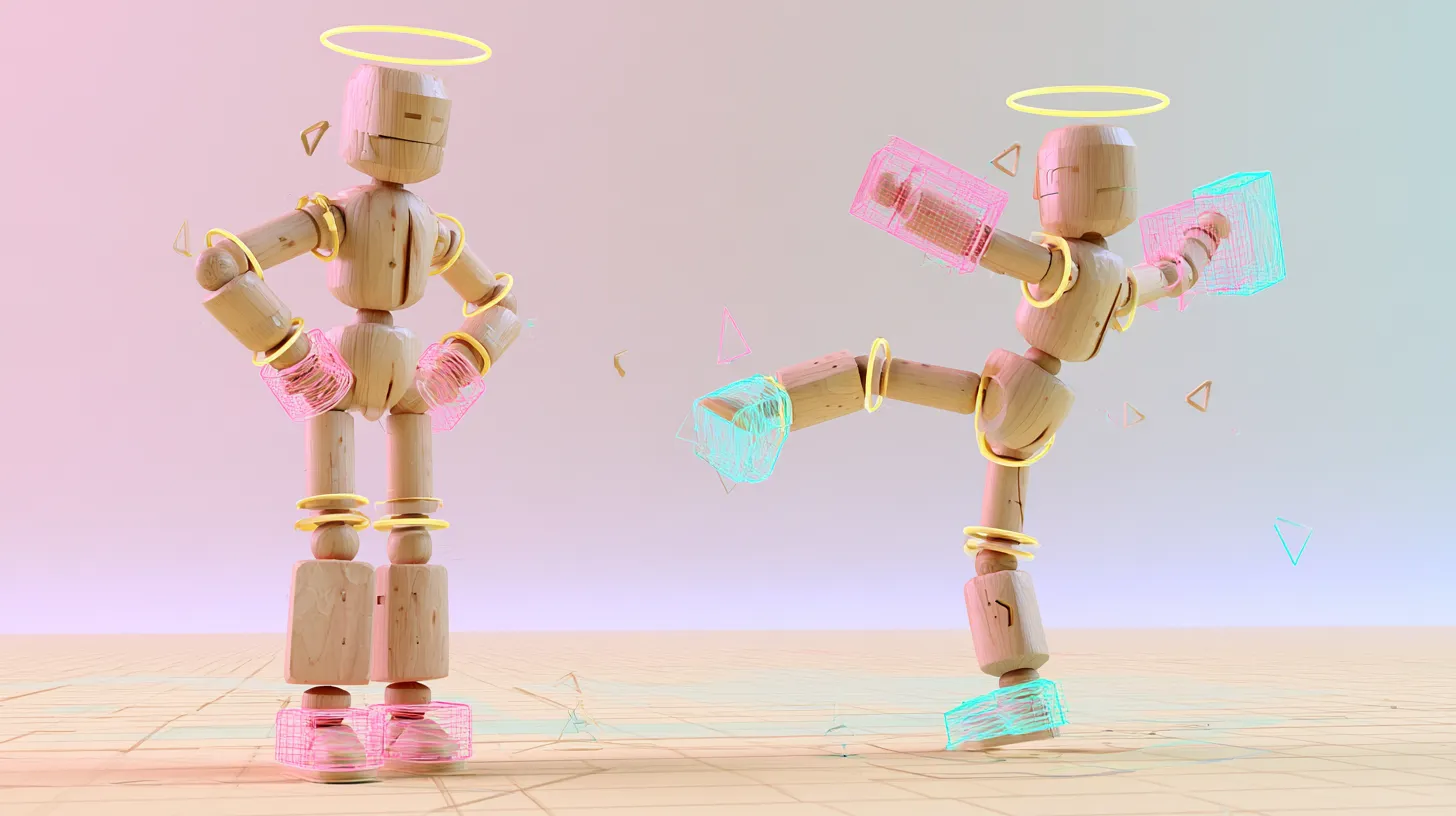
The complement is clean. Rig your character with Mixamo, use Mixamo clips for the common moves, then film the specific action you need and let AI motion capture capture it. Because both use the same skeleton, the custom motion retargets exactly like a Mixamo clip.
That animation exports as FBX or GLB for Blender, Unreal, Unity, Maya, and Cinema 4D. Be clear on one point. PINOC captures the motion, not the character model. You bring the Mixamo rigged character and apply the captured performance.
PINOC also has an image to 3D character feature that rebuilds a character image as a Gaussian Splatting model in the browser, so you can preview the motion on your character before export. You can also export the character model itself as a static PLY file.
PINOC runs on JST, Viggle’s in house video to 3D foundation model. JST is trained with physical priors, so captured motion respects weight, contact, and timing instead of lifting flat 2D keypoints frame by frame.

Here is what pairing them gives you.
- Mixamo for common walks, runs, and idles, free and instant.
- PINOC for the signature moves the library does not contain, also free.
- One shared Mixamo named skeleton, so both retarget the same way.
- FBX and GLB export into Blender, Unreal, Unity, and Maya.
- A browser preview of the custom motion on your character.
The capture workflow lives inside Viggle PINOC, and it is free to start. Keep Mixamo for the basics, and reach for PINOC whenever your character needs a move that only exists on video.
What is the Mixamo enough test?#
Not sure whether Mixamo covers your needs? Run the Mixamo Enough Test. Three questions settle it.
- Is the move common? A walk, run, jump, or idle is almost certainly in the library.
- Is the character humanoid? Mixamo auto rigging needs a standard human shape.
- Do you need a specific performance? A signature action or a movement that matches a real reference is not in any library.
Answer yes, yes, no, and Mixamo alone is plenty. Answer no to the last question, and you will need to capture the motion, which PINOC does on the same skeleton. The honest reality is that most games want both, common motion from the library plus a handful of custom moves for the moments that actually matter.
Frequently Asked Questions#
Is Mixamo free?#
Yes. Mixamo is a free Adobe tool that needs only an Adobe ID, with no subscription. Its characters and animations are royalty free for personal, commercial, and non profit projects, which is a big part of why it stayed so popular.
How do I use Mixamo animations?#
Sign in with an Adobe ID, upload a humanoid character as FBX or OBJ, place the auto rig markers, then browse the animation library and apply a clip. Adjust it with the sliders and download the result as FBX for your engine.
Can I use Mixamo animations commercially?#
Yes. Mixamo characters and animations are royalty free for personal, commercial, and non profit use, as the Mixamo FAQ confirms. You can ship them in a paid game without extra licensing, which makes Mixamo a genuinely free option for common motion.
Does Mixamo work with non humanoid characters?#
No. Mixamo auto rigging requires a clear humanoid shape, with a head, body, arms, and legs. Creatures, vehicles, and other non humanoid rigs are not supported, so you need a different tool or a custom rig for those.
How do I get custom animations that are not in Mixamo?#
Capture them from video. Viggle PINOC records the movement you want from any clip and exports it on a Mixamo named skeleton, so a custom performance retargets onto your Mixamo character exactly like a library clip.
How do I import Mixamo animations into Blender or Unreal?#
Download the animation as FBX, then import it and retarget the Mixamo skeleton onto your character. Unity does this automatically with its Humanoid rig setting, while Blender and Unreal use retargeting tools. A consistent skeleton keeps the process simple.
Why do Mixamo animations look generic sometimes?#
Because everyone draws from the same library. Popular Mixamo clips show up across many games, so a common walk or idle can feel familiar. The fix is to mix in custom motion for the moments that define your character, which is exactly what capturing your own performance provides.
Conclusion#
Mixamo remains one of the best free tools in 3D for what it does, auto-rigging a humanoid and handing you a library of royalty-free clips. But a library only holds what someone already recorded, so anything specific falls outside it. Viggle PINOC covers that gap, capturing custom motion from any video and delivering it on the same Mixamo-named skeleton for free. Use Mixamo for the common moves and PINOC for the ones that make your character yours, and you never hit the library ceiling again. That combination is quietly one of the best free animation setups available in 2026. One tool for the moves everyone shares, one for the moves nobody else has. The library was never really the problem. The ceiling was, and now there is a free way over it.