logo

Free Text toVideo AI

Type a prompt, pick a motion, and generate a fully animated video in under a minute. Viggle turns text into controllable video with real character motion — not just stylized clips. Works for short-form content, memes, marketing, and storytelling.

40M+ Users4.8★ Rating on App Store

How to Generate Video from Text with Viggle

Use Image & Video to draft scenes from a text prompt, then add controllable motion with Mix. Refine timing in Multi-Track and export.

Step 1
Write your prompt

Write your prompt

Describe the subject, motion intent, and output format in one concise prompt. Set first-frame and last-frame direction for tighter control. Keep the scope focused for the best results.

Step 2
Generate the scene and add motion

Generate the scene and add motion

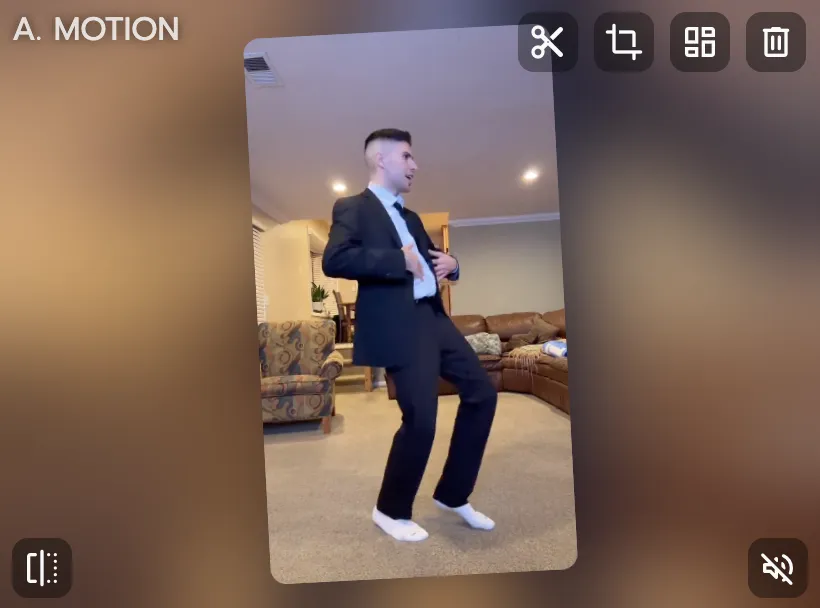
Create a base visual in Image & Video, then apply motion with Mix — pick a template or upload your own reference video. Review identity and movement direction after the first pass.

Step 3

Polish and export

Use Multi-Track for timing cleanup, object swaps, and scene adjustments. Front-load the hook for short-form performance, then export vertical cuts for Shorts, Reels, and TikTok.

Why creators choose Viggle for text to video

Go from text prompt to video draft in seconds

Image & Video lets you generate scenes directly from a text prompt — define your subject, style, and composition in natural language. Start from a script idea and get a visual draft without needing to source footage or design assets first.

Open I&V

Add real motion with Mix — not random animation

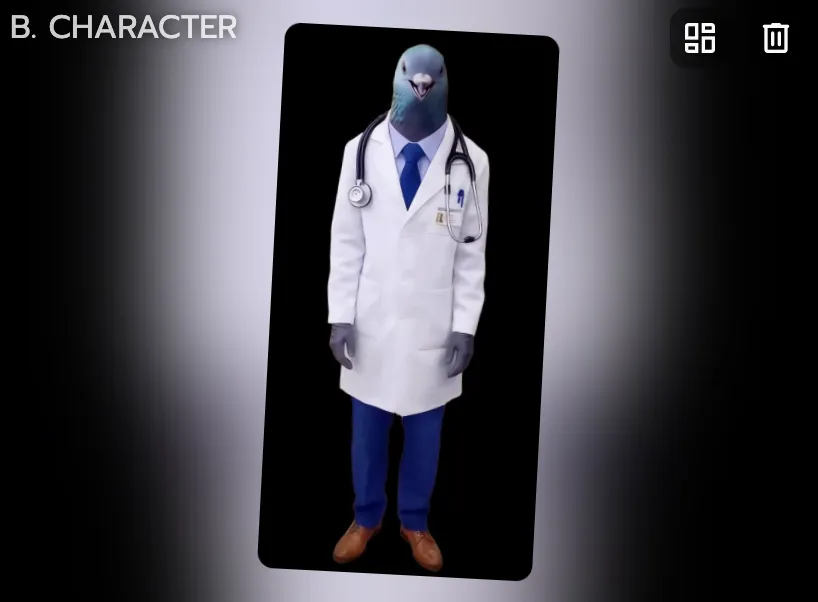
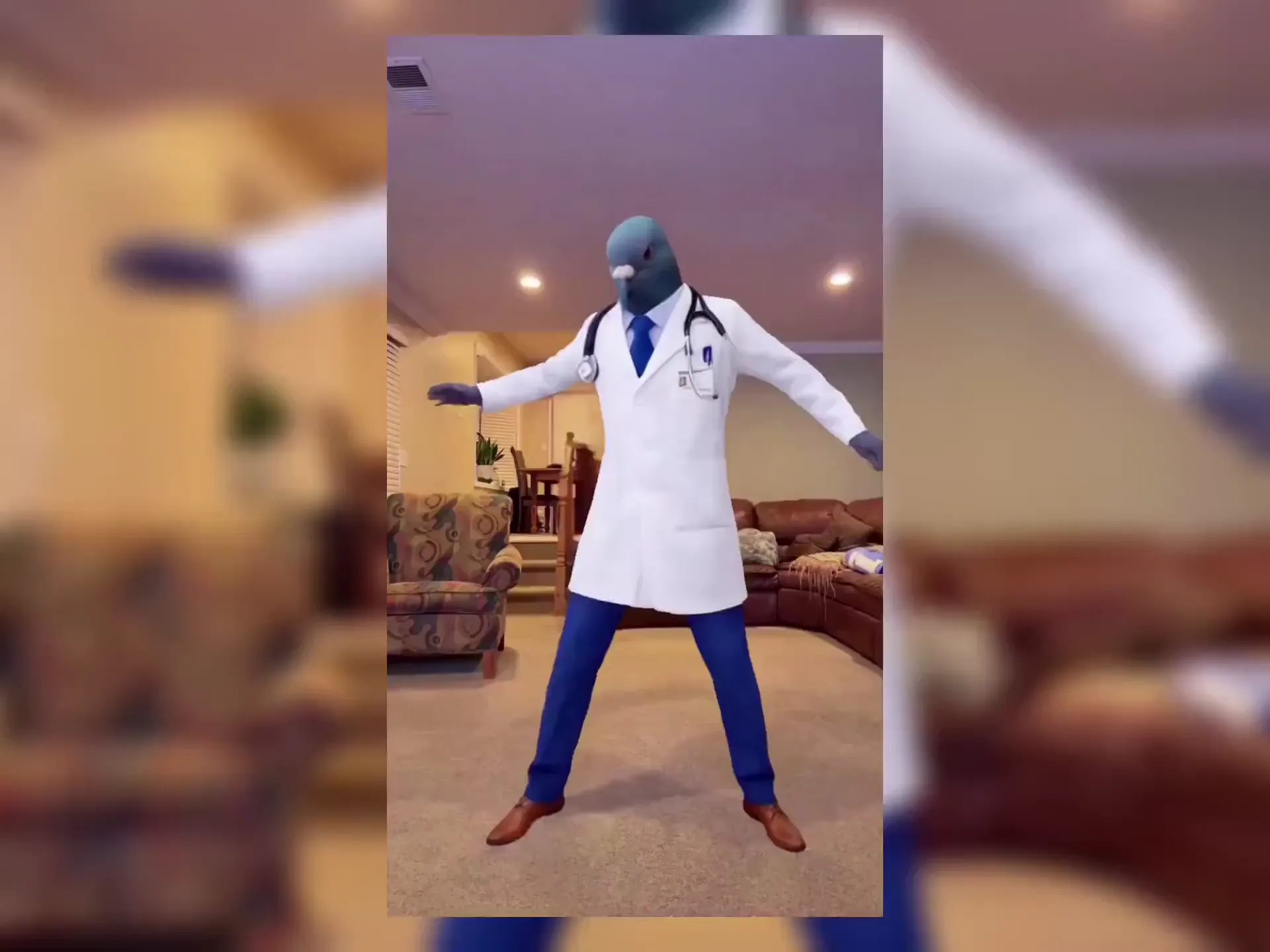
Once you have a visual draft, Mix lets you transfer movement from a template or reference video onto your character. You get controllable body motion, not a random animation loop. Keep your creative direction intact while adding dynamics.

Control Motion

Character stays consistent across every render

Viggle's JST-1 foundation model maps facial expressions and body behavior frame by frame. Your character looks the same whether you're generating the first scene or the fiftieth. That makes batch content production and A/B testing practical.

Keep Consistency

Refine without starting over

Character Refine improves identity fidelity before motion-heavy passes. Multi-Track lets you fix timing, swap objects, and adjust multi-person scenes on a timeline. You iterate on what matters without regenerating everything from scratch.

Refine Output

8,000+ templates and free to start

Browse thousands of motion templates — dances, memes, sports highlights, cinematic scenes, and more. New templates added regularly. Free to use with up to 5 videos per day, no credit card required.

Browse Templates

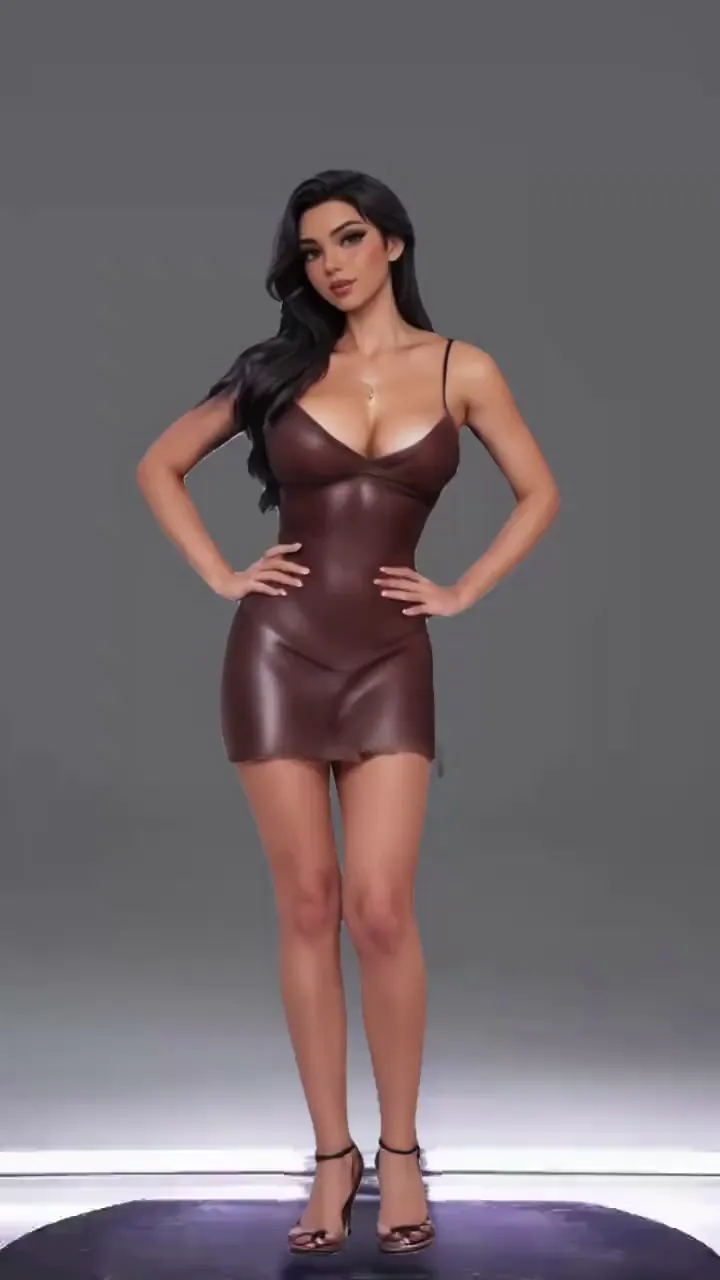
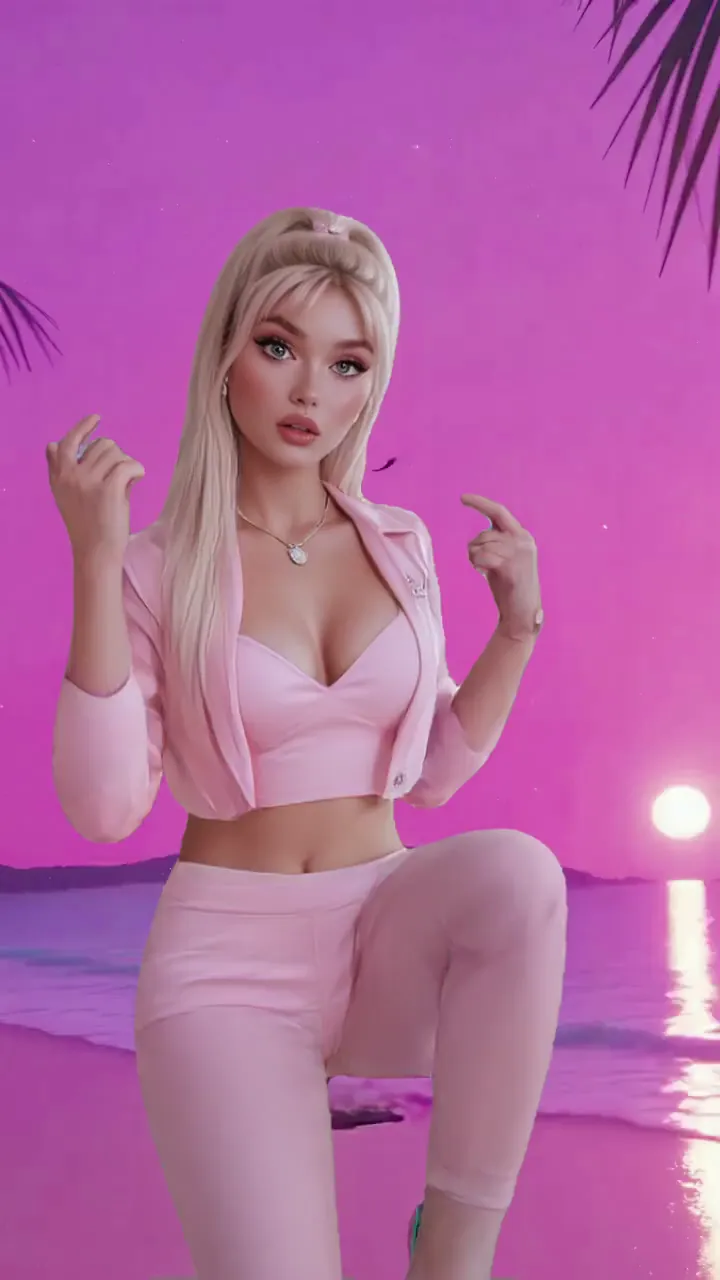
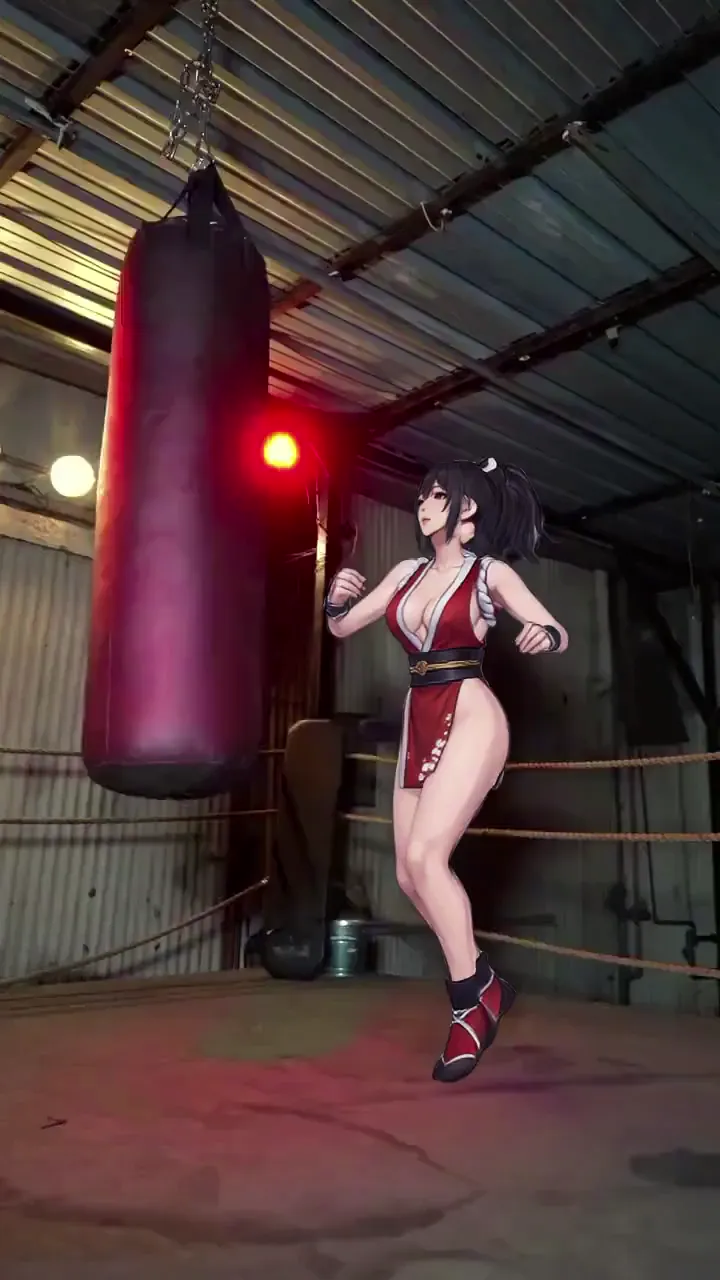
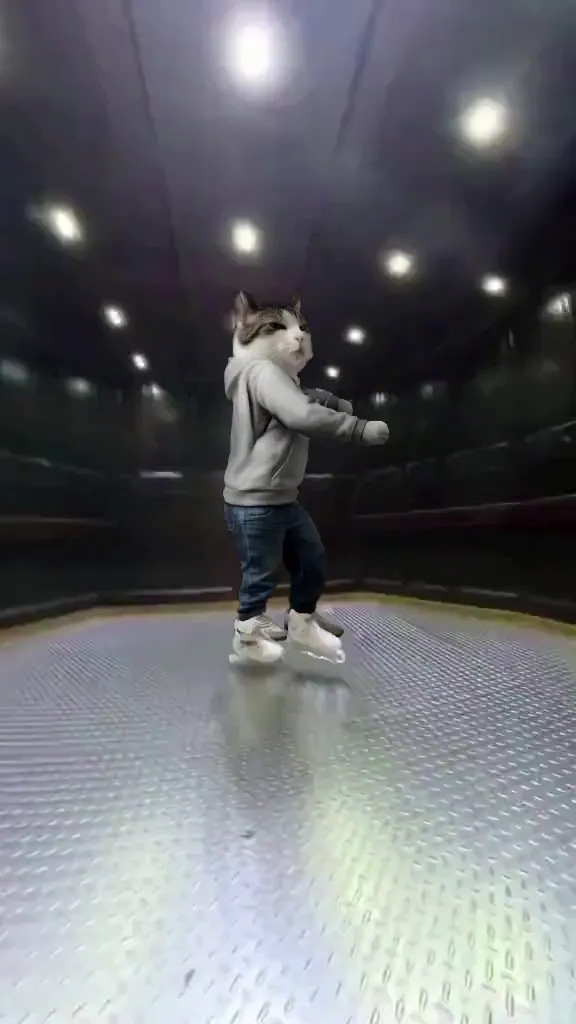
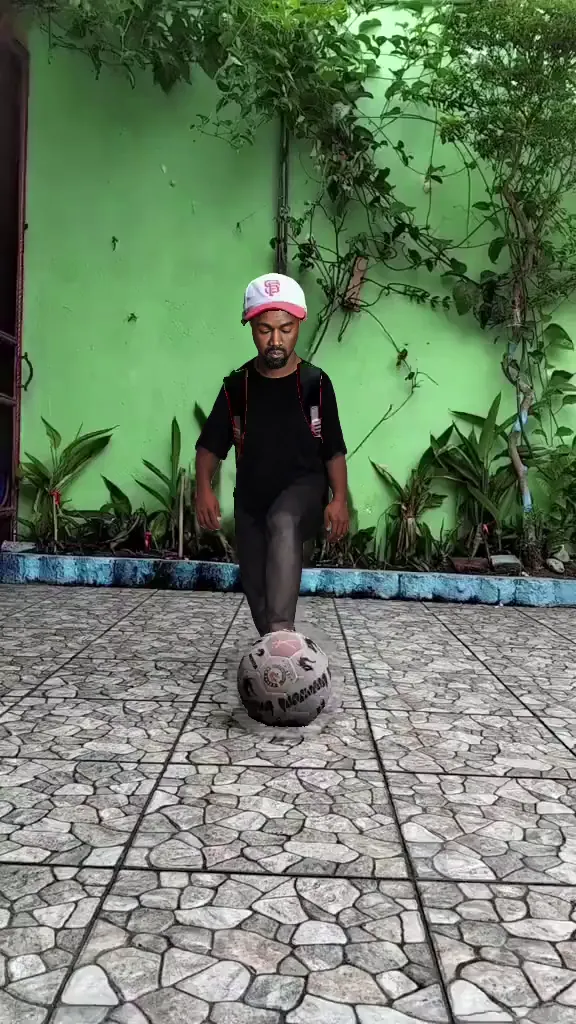
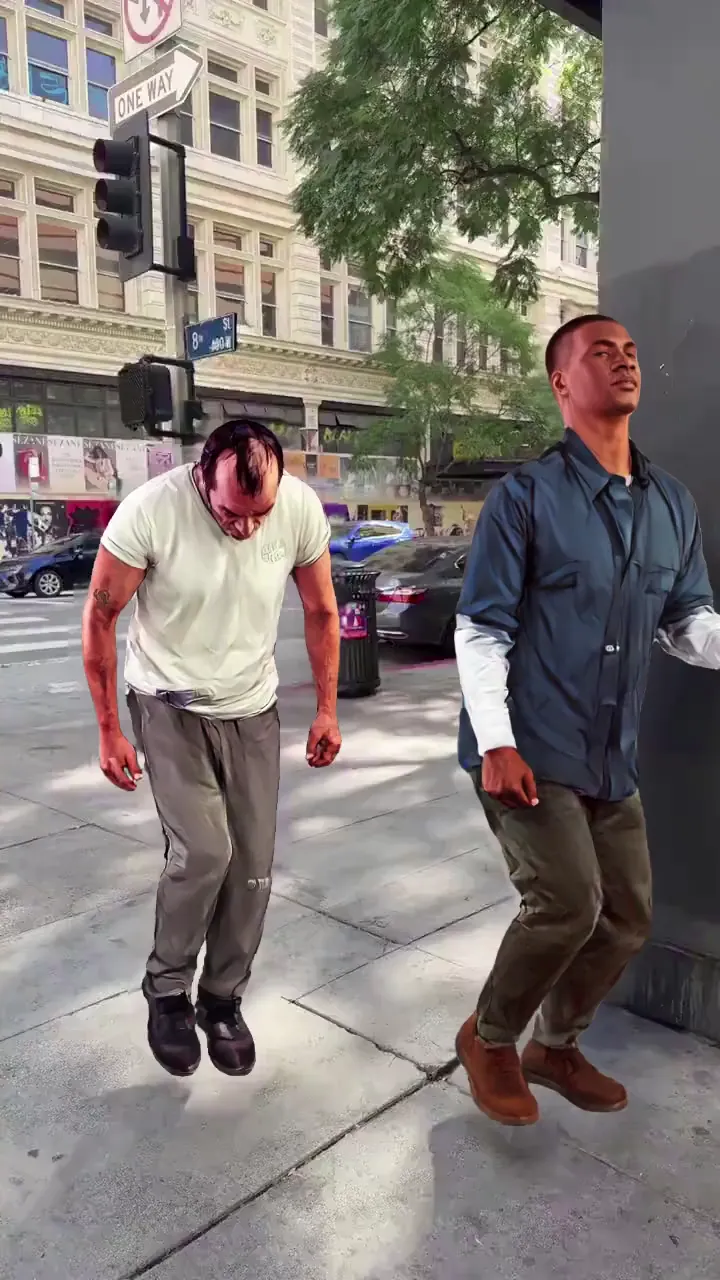
Text to video examples made with Viggle

Who Uses Text to Video AI

01

Short-Form Creators

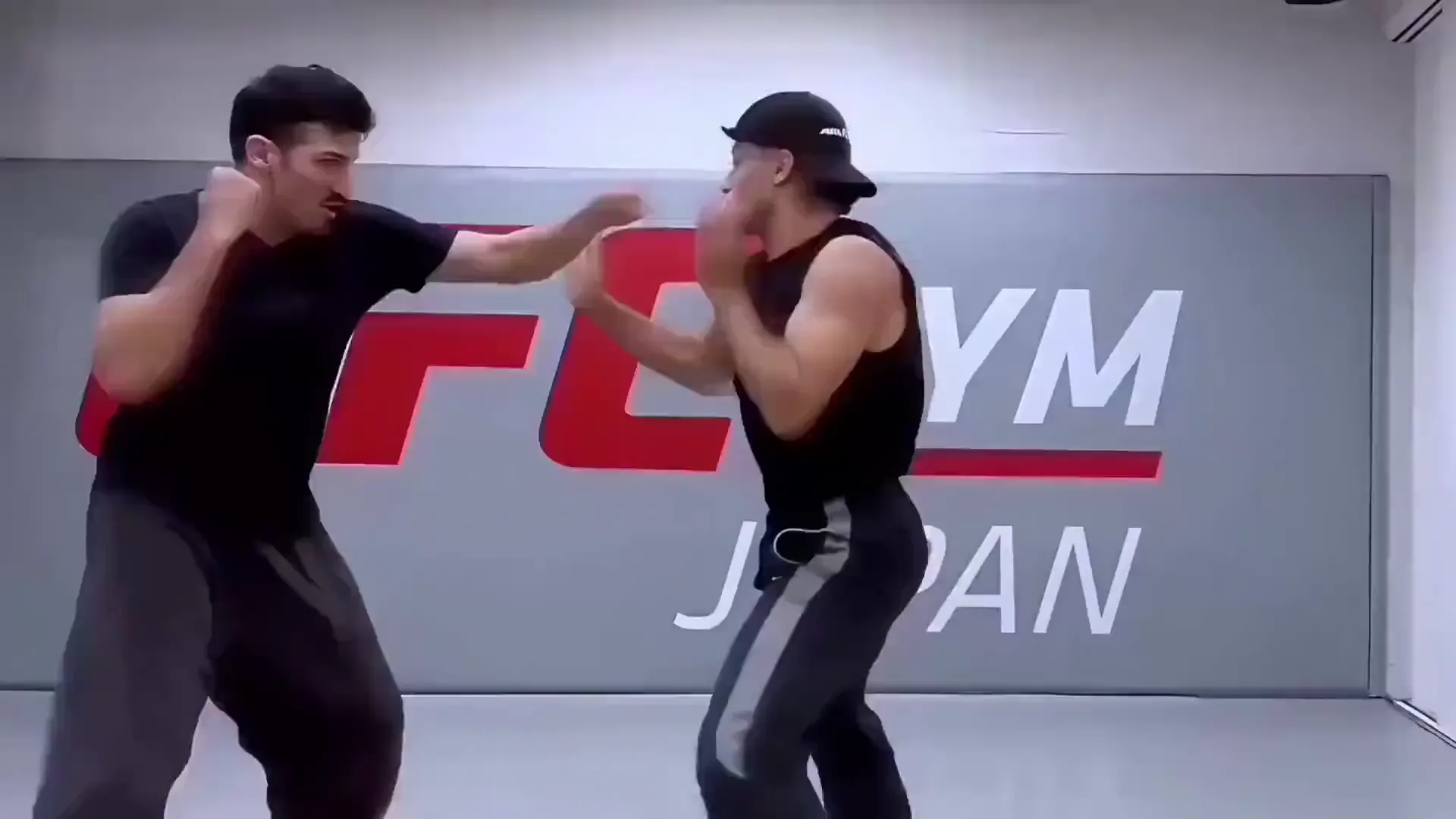
Generate scroll-stopping content for TikTok, Reels, and Shorts. Type a prompt, pick a trending motion template, and export a vertical video in under a minute. Perfect for creators who publish daily and need fast turnaround without sacrificing quality.

02

Filmmakers and Previs Artists

Block scenes and test motion sequences before committing to production. Generate character animations from text descriptions, try different camera angles and movements, then refine only the takes that work.

03

Animators and Motion Designers

Skip the rigging and keyframing step. Describe your character and motion in text, generate the animation, then polish in Multi-Track. Works with any art style — 2D, 3D, anime, cartoon, or photorealistic.

04

Meme and Fan Edit Creators

Drop any character into trending templates — viral dances, movie scenes, sports highlights, and more. Viggle's text-to-video pipeline makes it easy to ride trends before they peak.

05

Brands and Marketing Teams

Produce character-driven video ads and social content at scale. Generate campaign variants quickly, keep brand mascots consistent across scenes, and export ready-to-publish cuts for every platform.

06

Indie Game Developers

Create game trailers, character showcases, and promotional clips from text descriptions. Animate game characters without motion capture equipment or animation software.

Viggle vs other text to video tools

Try Viggle Free
功能Viggle AIRunwayPikaLuma AI
Prompt-to-video with motion control⚠️ Limited⚠️ Limited⚠️ Limited
Character consistency across renders⚠️ Limited⚠️ Limited⚠️ Limited
Full body motion transfer⚠️ Partial
Lip sync and voice-driven motion⚠️ Limited
8,000+ motion templates
Multi-Track timeline editing⚠️ Limited
Free tier available✅ 5/day⚠️ Limited⚠️ Limited⚠️ Limited

Text to Video AI — Frequently Asked Questions

How does text to video AI work on Viggle?

Use Image & Video to generate scenes from text prompts. You can set first-frame and last-frame intent for better control. Then use Mix to add controllable motion from templates. Character consistency stays stable across renders.

What can I control when generating video from text?

You control subject appearance, motion direction, output format, and scene composition. The JST-1 foundation model maps facial expressions, body motion, and lighting frame by frame for predictable results.

How is Viggle different from Runway or Pika for text to video?

Viggle uses JST-1, a self-developed video-3D foundation model. That means controllable motion and character consistency, not just random video generation. Full body motion and lip movement transfer come standard.

How long does it take to generate a video from text?

Most outputs are ready under a minute, depending on complexity. First renders work best as direction checks — use Multi-Track to refine timing and object details without full regeneration.

Can I use my own images as the character source?

Yes. Upload any character photo and use it as the source in Mix. Character Refine can improve fidelity across multiple angles before final motion passes.

Does Viggle support short-form vertical video export?

Yes. Export vertical cuts optimized for YouTube Shorts, Instagram Reels, and TikTok. Choose from 8,000+ motion templates designed for short-form content.

What AI models power Viggle?

Viggle integrates JST-1 (its own video-3D foundation model), plus Nano Banana Pro, Nano Banana 2, Seedream 4.5, Seedream 5.0 Lite, and Veo 3.1 for different visual styles and generation needs.

Is Viggle free to use for text to video generation?

Yes. Sign up for free and generate up to 5 videos per day. No credit card required. Premium plans are available for higher volume and priority rendering.

Ready to turn text into video?

Try Viggle Free

Turn Text into Video
in under a minute

Controllable motion, consistent characters, and vertical exports — all from a text prompt. Free to use, no credit card required.